
Need Additional Help? If you need further assistance after reading this article, please contact the IT helpdesk via email at techsupport@baypath.edu or by phone at (413)565-1487.
Accessing the Checklist
-
From a web browser, sign in to Paycom.
If you need a reminder, here are the instructions for how to do so.
-
Select the notification bell icon in the upper-right corner of the screen.
.png?cb=5488e64bac49d244cda458a03611cfbe)
-
Select the notification that says Employee Data Verification Checklist.
.png?cb=947383fcf2034e88d387cec928d0dd85)
-
You will see the checklist with the different tasks. Select Start to open each task.
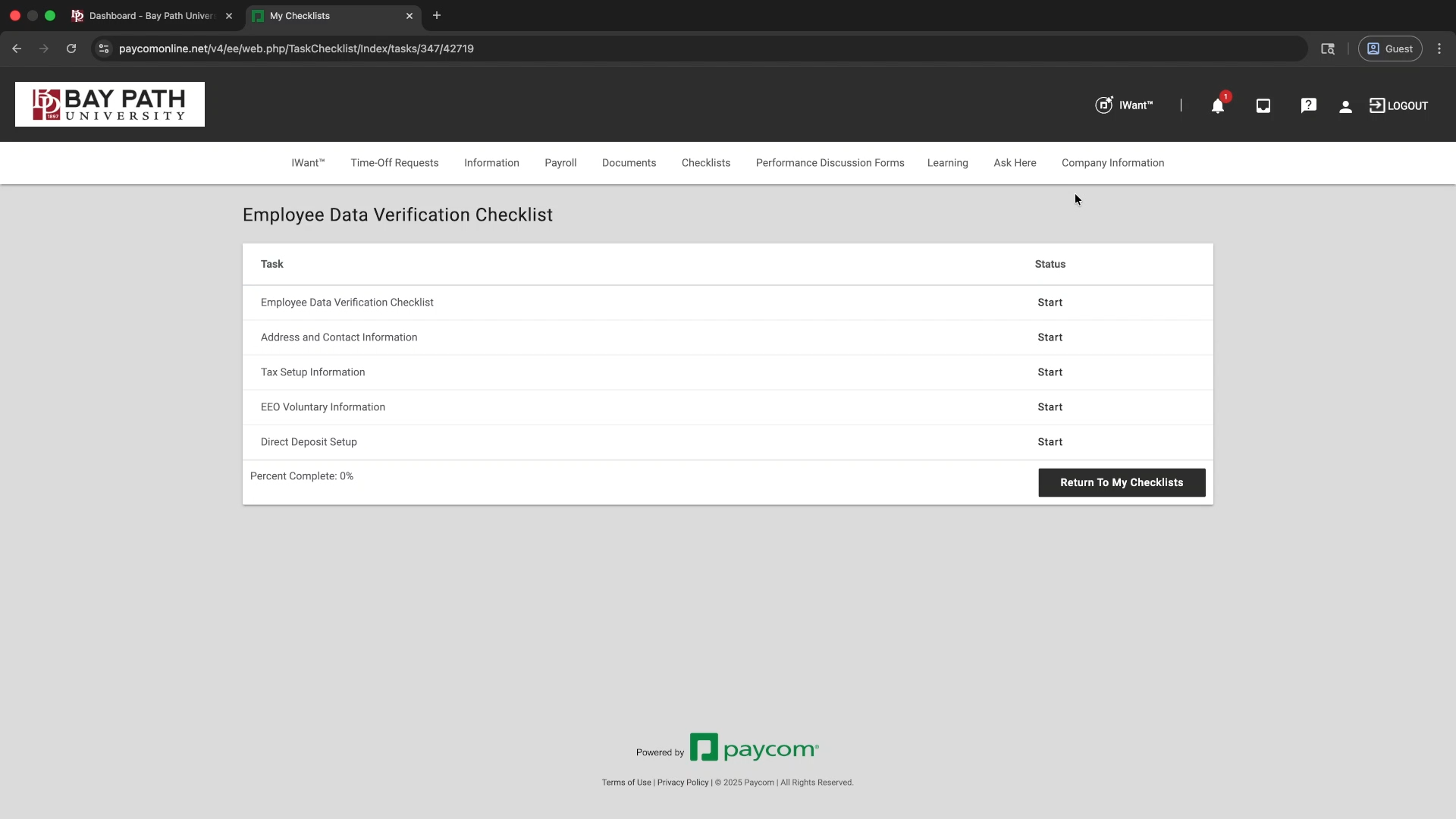
Employee Data Verification Checklist Task
-
Select Start next to the Employee Data Verification Checklist task.
.png?cb=b99017604758d0b06648e14e6b0aec0f)
-
Read the acknowledgement and then select Acknowledge.
.png?cb=749ebcc674a350189ebdc7344217e8f4)
-
You will be redirected back to the checklist.
Address and Contact Information Task
-
Select Start next to the Address and Contact Information task.
.png?cb=0e03570cdaa14b66ea2de4928c6e8de7)
-
A window with instructions will pop up. After reading, select Start.
.png?cb=ad75085464f3c5ea9577c3d8ab720edd)
-
Verify that your email address, phone number, and emergency contacts are correct.
-
Under Phone Number, enter your country code and 10-digit phone number. Select the phone type.
.png?cb=bd8510517ebbed1e9f4c6fc0587cd9e9)
You will need to verify your phone number after adding it. Here are the instructions for verifying your phone number.
-
Under Addresses, make any necessary changes.
-
Under Emergency Contacts, select Add Emergency Contact.
.png?cb=412d85be56d0ed623bc87818213b10ce)
-
Enter the emergency contact information, then select Add.
-
Select Update at the bottom of the page.
.png?cb=d8705a31381a977a8111255a5f0c3841)
-
You will be redirected back to the checklist.
Tax Setup Information Task
-
Select Start next to the Tax Setup Information task.
.png?cb=d877467162cc1a0b446ed27e3b2dc982)
-
A window with instructions will pop up. After reading, select Start.
.png?cb=fcd30d4b09778b42488de3758239f4b5)
-
On the Federal tab, ensure the information is correct.
.png?cb=5c39da7d0493384a6d30c9ea52b4d574)
-
Select the State/Local tab. You will see each state for which you have tax information.
.png?cb=be8d1c30f69a828a5cbc5830548a5f80)
-
Select each state’s subtab, and ensure the information is correct.
-
Once you are finished, select Acknowledge and Sign at the bottom of the page.
.png?cb=985cab319eee87e3e813724220c418cd)
-
On the Confirm pop-up, ensure that the information is correct. Then, select Sign.
.png?cb=c0361d07607fd3e2313b2fd941640a52)
-
On the Sign [Form W-4] pop-up, check the box next to “Under penalties of perjury, I declare that I have examined the information provided and, to the best of my knowledge and belief, it is true, correct, and complete.”
.png?cb=e8786b614f36c46350bd06a74d9d91ab)
-
When you check the box, you will be prompted to sign. Select Type in to type your signature.
.png?cb=c622aabb25d90447b69063b85a6a290a)
-
Enter your full name in the Your Name: field.
-
Select Sign when finished.
.png?cb=b9bc462cc1d0b011fbaeb3b54636c6da)
-
You will be redirected back to the checklist.
EEO Voluntary Information Task
-
Select Start next to the EEO Voluntary Information task.
.png?cb=4c539c78a880c794e270f1c84de0e8b6)
-
A window with instructions will pop up. After reading, select Start.
.png?cb=ad090d193dbf246ec372fb829df8708c)
-
Check the appropriate boxes in the Gender and Race/Ethnicity sections.
.png?cb=eb81a9cfeaa2f51914971d47518b54c0)
-
Under Disability Status, select View Invitation to Self-Identify.
.png?cb=7617a8f04e7c71d096d5751a9dca844f)
-
If you see a pop-up that says Leave site? select Leave.
.png?cb=62b364c04eb591258cb5aa4168fb65e7)
-
A new page will open.
-
Check the appropriate box, then select Save and Submit.
.png?cb=2a6bbf405f9a762e33d06de89aa8718a)
-
On the Sign [Voluntary Self-Identification of Disability (Form CC-305)] pop-up, check the box after reading the acknowledgement.
.png?cb=a7d2eb3b099f5806f37f4dd5afc4ed22)
-
When you check the box, you will be prompted to sign.
-
Select Type in. Your signature from the previous step was saved.
.png?cb=bf953a5e93aade151069ddc429f6fe81)
-
Select Sign.
.png?cb=b99cd70b7841419da1e196e05b0fc823)
-
Under Protected Veteran Status, select View Invitation to Self-Identify.
.png?cb=ff6c3f6db0265d6608132e07ad5e2cc8)
-
A new page will open.
-
Enter the appropriate information, then select Save and Submit.
.png?cb=230bef92f95859586c8796a10754901d)
-
On the Sign [Veteran Invitation to Self ID Veteran Status (VETS 4212)] pop-up, check the box after reading the acknowledgement.
.png?cb=7e979ca2e5553c4ee54aac71a0de2b5d)
-
When you check the box, you will be prompted to sign.
-
Select Type in. Your signature from the previous step was saved.
.png?cb=3f2dfd1dcbdbdc52c6939f8b31d41e50)
-
Select Sign.
.png?cb=40e0c360a1a3b5cc69e49e38e440766e)
-
Once finished, select Update.
.png?cb=3709b0011698457bd860459a5afc208d)
-
You will be redirected back to the checklist.
Direct Deposit Setup Task
-
Select Start next to the Direct Deposit Setup task.
.png?cb=bdbb15c1cc25a4ef7d32f8e84a7981bd)
-
A window with instructions will pop up. After reading, select Start.
.png?cb=eadc9fb81b9c504cd98a1225282dfaac)
-
Ensure that the information is correct.
-
When finished, select Approve and Sign.
.png?cb=90dd37e6abca7e976c0eaed5ab7ee990)
-
On the Acknowledge and Sign pop-up, check the box after reading the acknowledgment.
.png?cb=9dc8028477cafe20102acb09c03c32c2)
-
When you check the box, you will be prompted to sign.
-
Select Type to type your signature.
.png?cb=c7fdb4c6722182be022976f7d3a88e0f)
-
Type your full name in the Click Here to Type field.
-
Select Sign.
.png?cb=d68f4852d90b442aeb77a59f170126ae)
-
You will be prompted for Two-Factor Authentication. Select the method to receive the authentication code, then select Next.
.png?cb=69ef80efc7fda7cddeb061b31f6b1200)
-
Enter the code you received in the 6-Digit Verification Code field. Select Submit.
.png?cb=602f6435e5ec7dafe8217263559a0f95)
-
You will be redirected back to the checklist.
You have now finished your checklist!