Need Additional Help? If you need further assistance after reading this article, please contact the IT helpdesk via email at techsupport@baypath.edu or by phone at (413)565-1487.
Instructions for iOS
-
From the Apple App Store, install the Paycom app.
-
Here is the link to the Paycom app in the App Store.
-
-
Once the app has been installed, select Open.
.png?cb=1aecc8952e37480e353d797d5223b6cf)
-
You will see a pop-up that says Paycom would like to send you notifications. Select Allow.
.png?cb=6bc9f44430d0593dfb058b4951d64619)
-
Read the End User License Agreement, then select Agree.
.png?cb=6d9e9b5aa80d11072abd7c10f00f97fb)
-
On the login screen, select Use Single Sign-On.
.png?cb=bf47b56c79671e2a0f7f273d6ff92b96)
-
In the Username or Company Domain field, enter your University email address. Select Sign in.
.png?cb=6ab5b9ddd60875ef72ddb0ae2b66fc72)
-
You will see the Bay Path Single Sign-On (SSO) screen. Enter your University credentials, then select Sign in.
.png?cb=cdbe3e49746884a6202e6e44bb13f9f9)
-
You will be prompted to authenticate via Duo.
.png?cb=1e62e8f04bcbac7ad7ec9c0916827f86)
If you need assistance with Duo Multifactor Authentication, please reach out to the IT helpdesk.
-
After approving Duo, you will be asked to add Face ID or a passcode. To use Face ID, select the Face ID icon.
.png?cb=2edcb15fa15891f4fda1c23fa6f3382f)
-
If you select Face ID, you will see a pop-up that says Do you want to allow “Paycom” to use Face ID?. Select Allow.
.png?cb=9b8e1f71216ea017c4857cf1c9a5453d)
-
You will then need to verify your account. Select the method that you’d like the verification code sent to and select Next.
.png?cb=98e4f674c3a25c7fe6aff1e074d88bc8)
-
Enter the verification code and select Verify.
.png?cb=45a441c666b75723513e9ecf25137854)
-
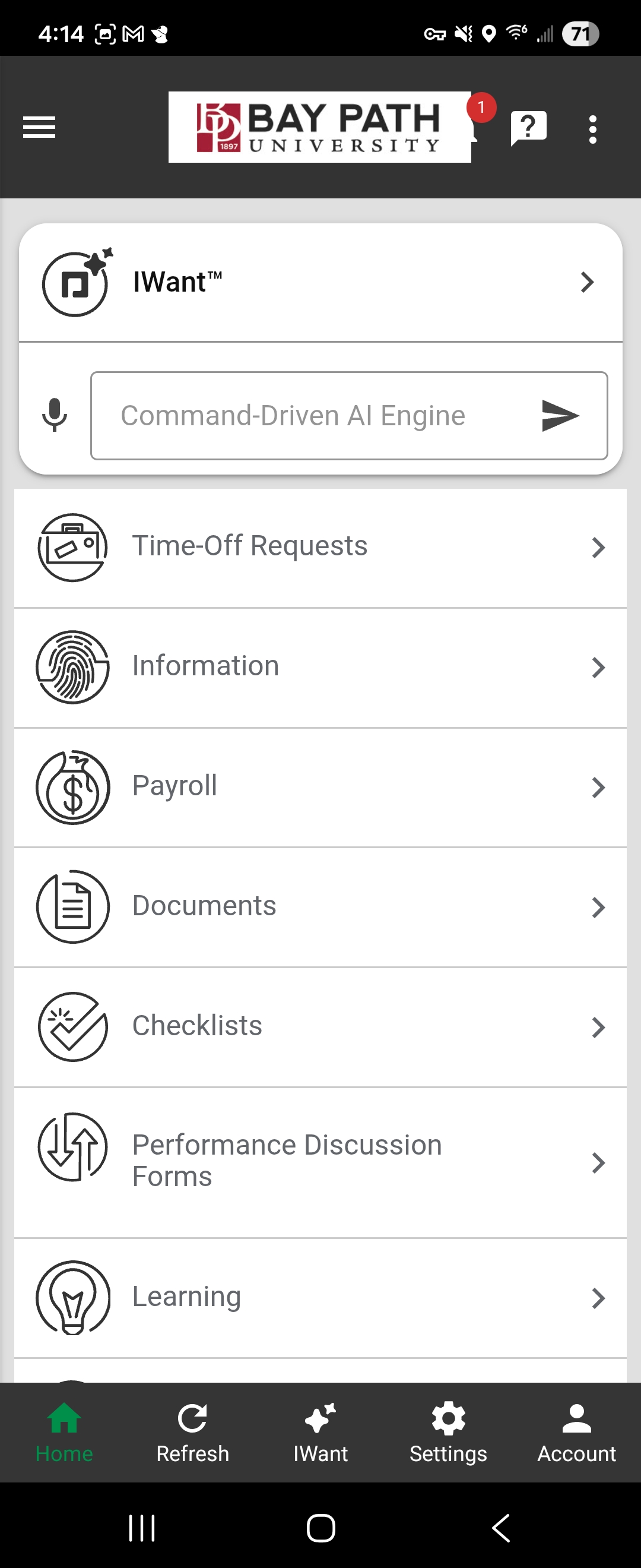
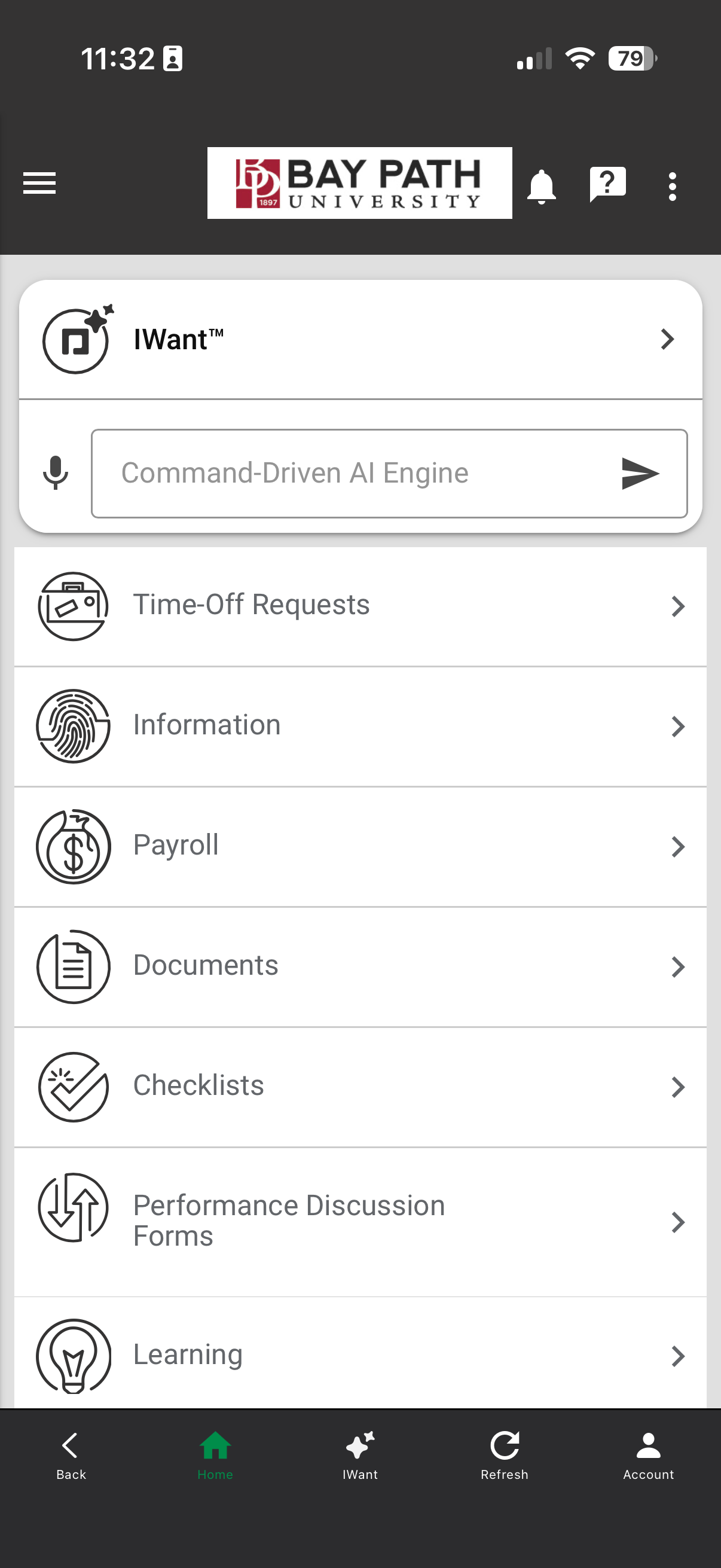
You are now signed in!
Instructions for Android
-
From the Google Play Store, install the Paycom app.
-
Here is the link to the Paycom app in the App Store.
-
-
Once the app has been installed, select Open.
.png?cb=cb50a2f52e9770e99bbe5493f2725bcd)
-
Read the End User License Agreement, then select Accept.
.png?cb=3c68c82011f253ed5f5152105ed0e24e)
-
On the login screen, select Use Single Sign-On.
.png?cb=228a118f4235392f9463c05a44f5afcc)
-
In the Username or Company Domain field, enter your University email address. Select Sign in.
.png?cb=7843d96400b84c3b269370af59986f45)
-
You will see the Bay Path Single Sign-On (SSO) screen. Enter your University credentials, then select Sign in.
.png?cb=6cca36c4e360269630981032d2c52529)
-
You will be prompted to authenticate via Duo.
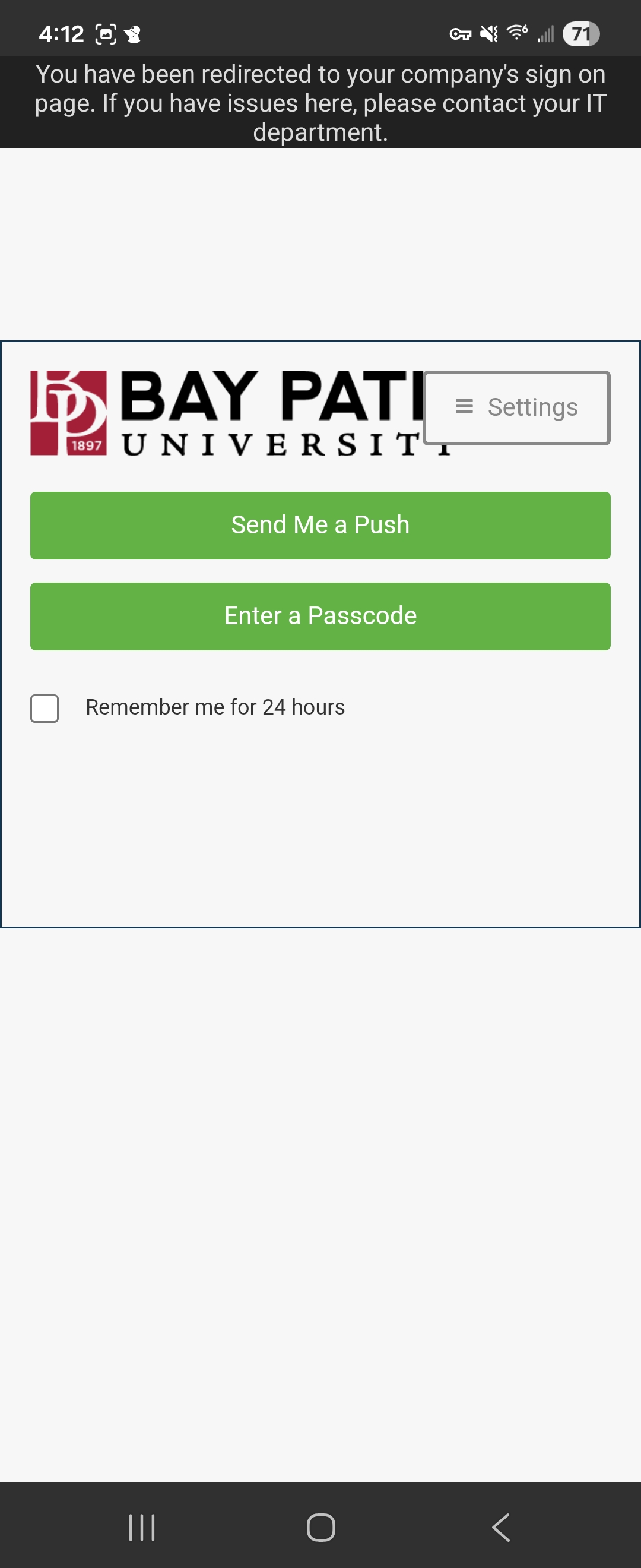
If you need assistance with Duo Multifactor Authentication, please reach out to the IT helpdesk.
-
After approving Duo, you will be asked to use Biometric or a passcode. To use Biometric, select the Biometric icon.
.png?cb=2ec2e0e4c8d0446a6ea6c05b41bc68d7)
-
You will then need to verify your account. Select the method that you’d like the verification code sent to and select Next.
.png?cb=5e9b30deb99eb3435191060c335bb5f4)
-
Enter the verification code and select Verify.
.png?cb=3ec967866c331332425310a7c2f588b5)
-
You are now signed in!