
Need Additional Help? If you need further assistance after reading this article, please contact the IT helpdesk via email at techsupport@baypath.edu or by phone at (413)565-1487.
Duo Multifactor Authentication allows a user to manage their devices. If you'd like to make any changes to your Duo account, you may find the following information useful.
Accessing the Manage Devices Menu
-
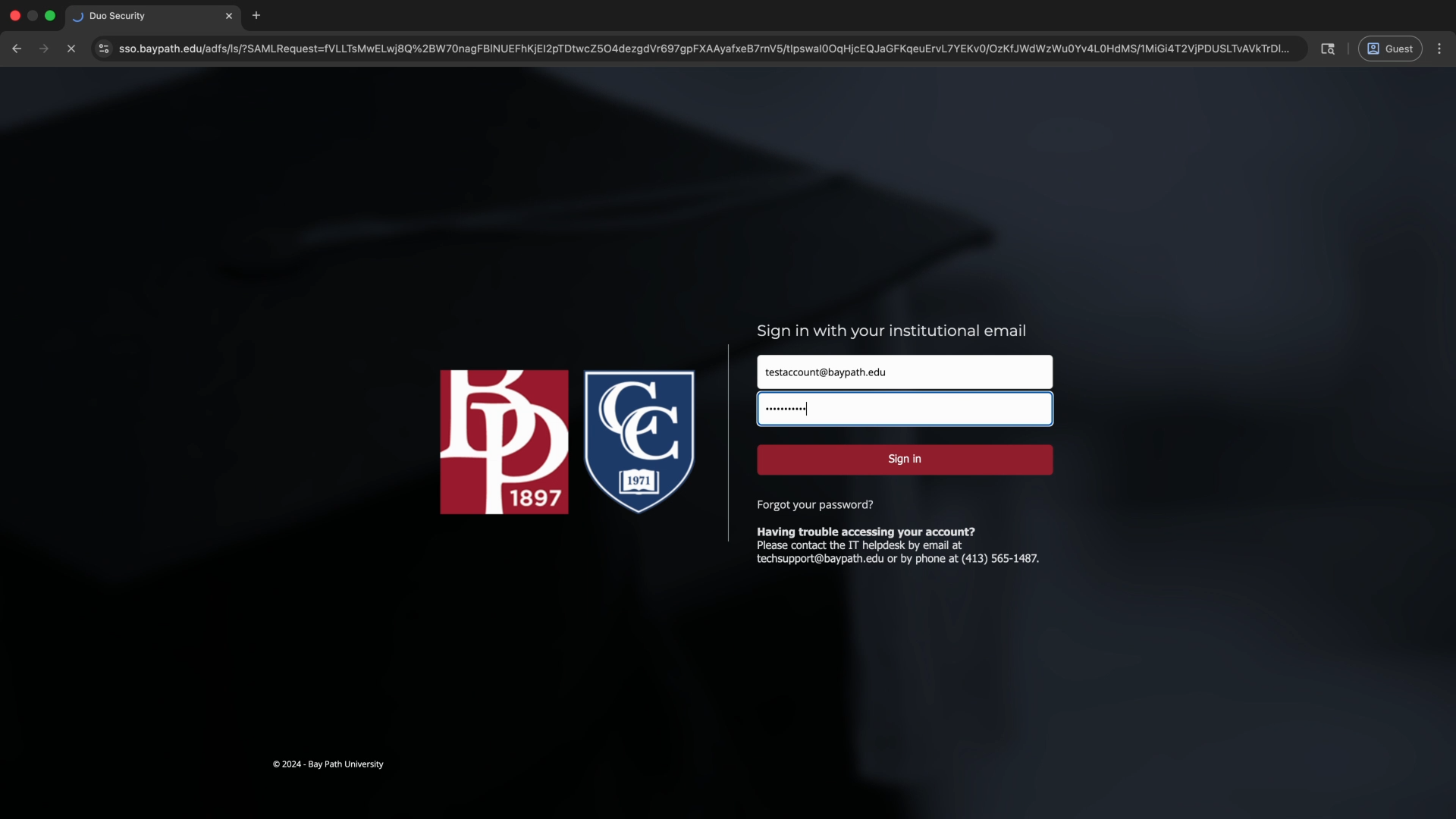
From a web browser, visit a Duo-enabled service such as the My Bay Path Portal or Canvas and sign in with your Bay Path email address and password.
-
When you see the Duo prompt, select Other options.
.png?cb=8964f0eaa0b425c532c453426f0cf1c0)
-
From the Select an option to log in menu, select Manage devices.
.png?cb=6613b688ca8fdc32c523f8ecb95e1b0c)
-
On the Verify your identity before managing devices screen, select Duo Push to send a push to your device.
.png?cb=86407ed98305e57aa336613df45e1377)
-
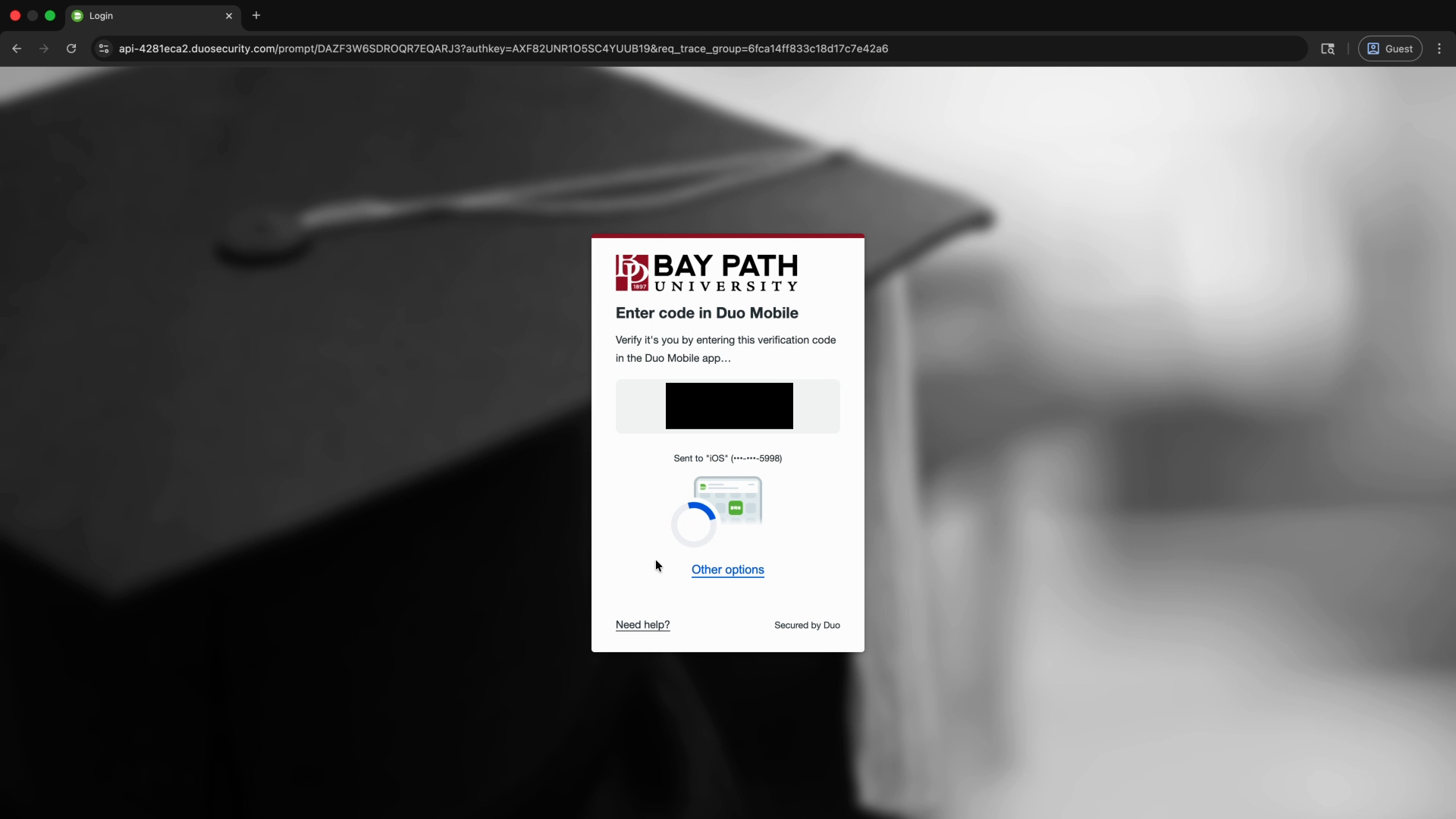
You will see a code on the screen that you need to enter in Duo Mobile on your mobile device.
-
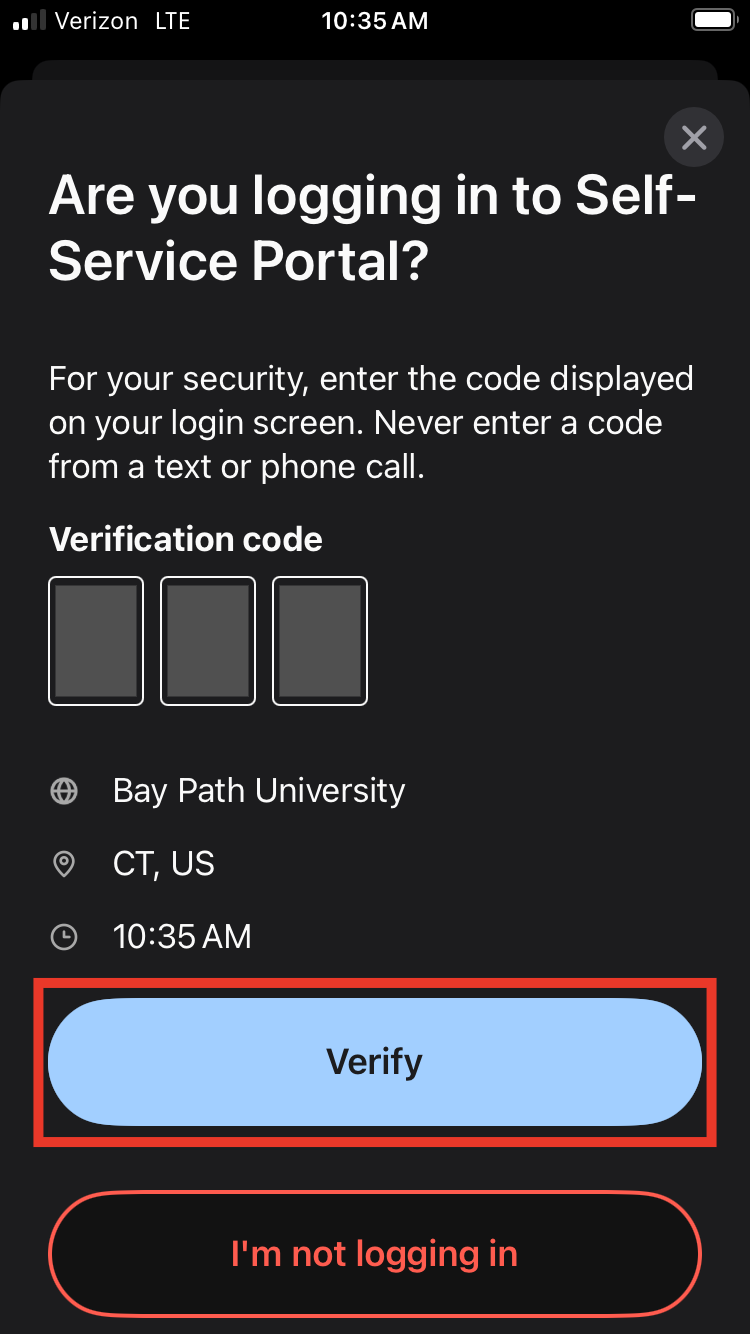
On your mobile device, enter the code and select Verify.
-
Once you’ve typed the code into Duo Mobile on your mobile device, you will be verified, and you will be redirected to manage your devices on your computer.
Adding Duo Desktop
We recommend using Duo Desktop on your computer. Before you set it up, you will need to install the program on your computer. Here are the links to install Duo Desktop for Windows, MacOS, and Linux: https://duo.com/docs/duo-desktop-faq#install-upgrade-and-uninstall
-
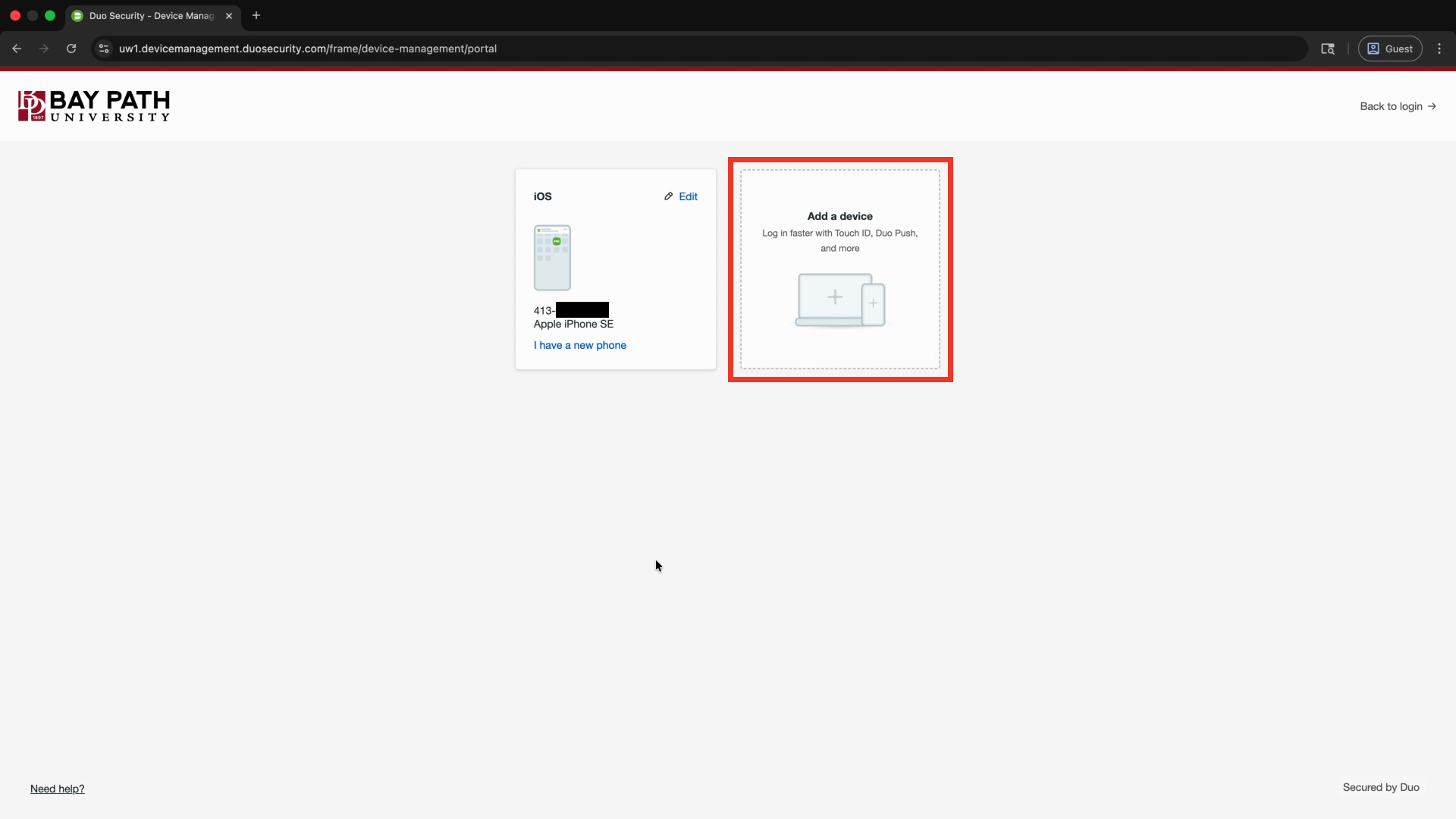
Select Add a device.
-
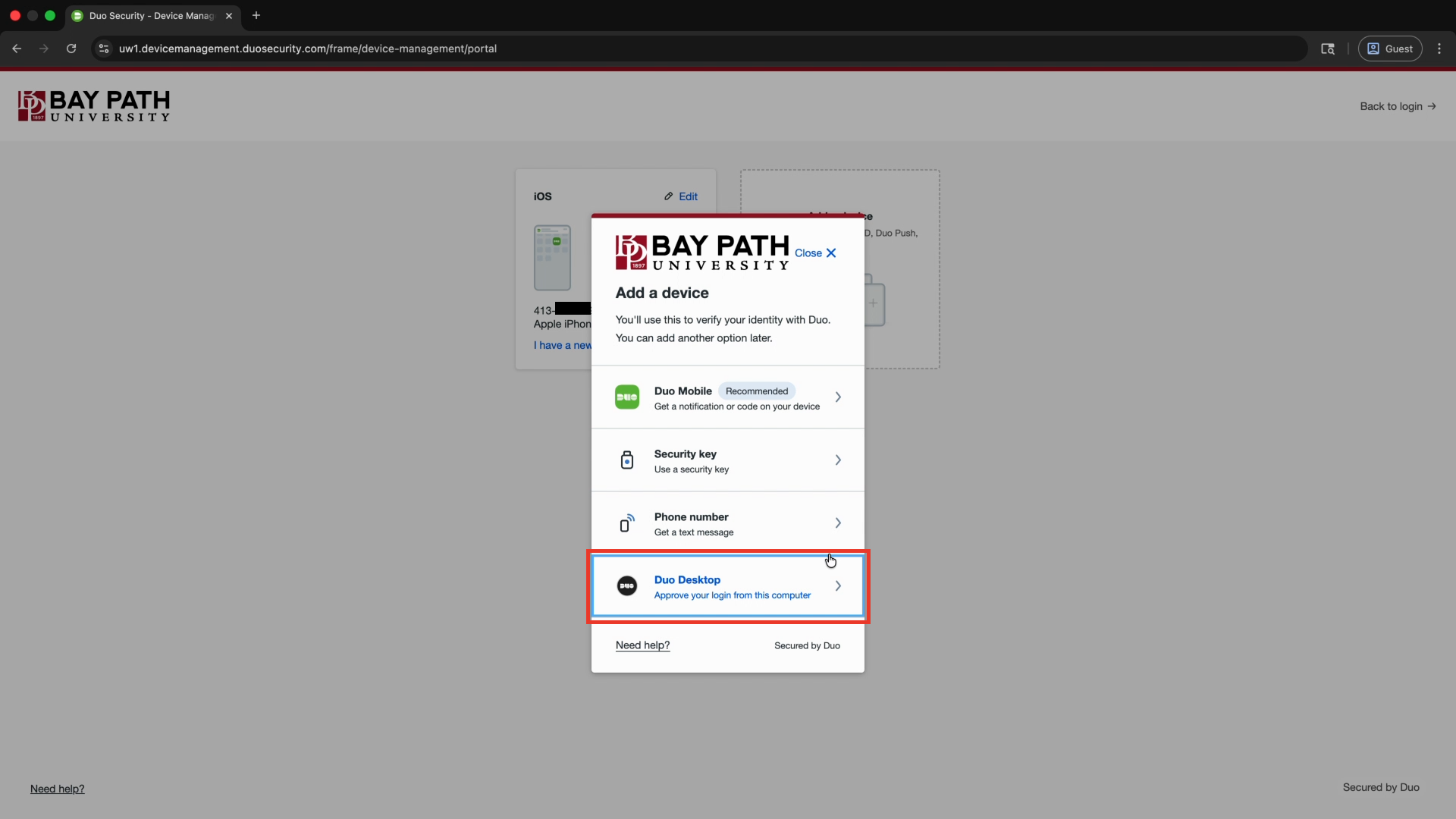
From the Add a device menu, select Duo Desktop.
-
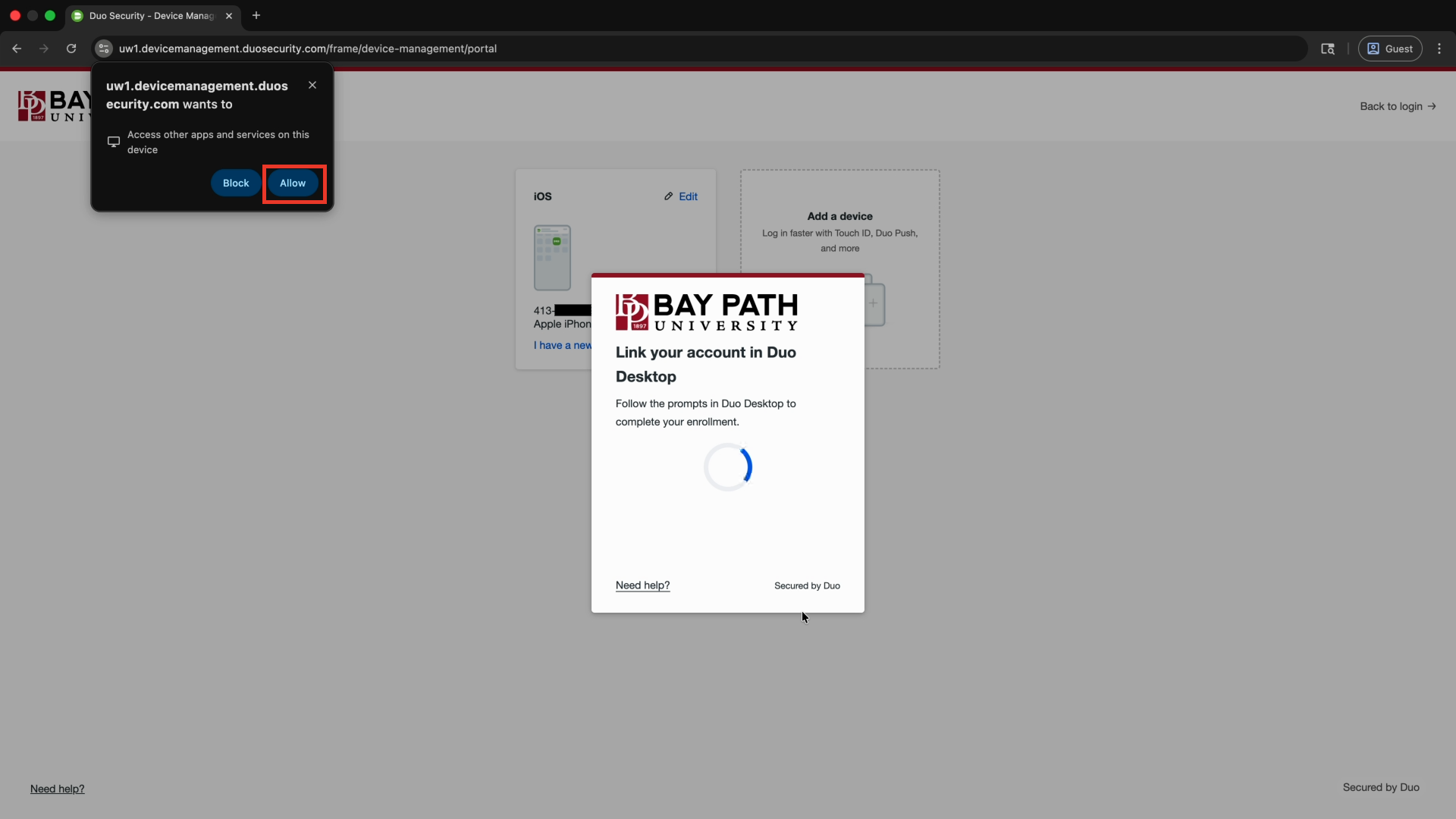
Your browser will ask for permission to access other apps and services on the device. Select Allow.
-
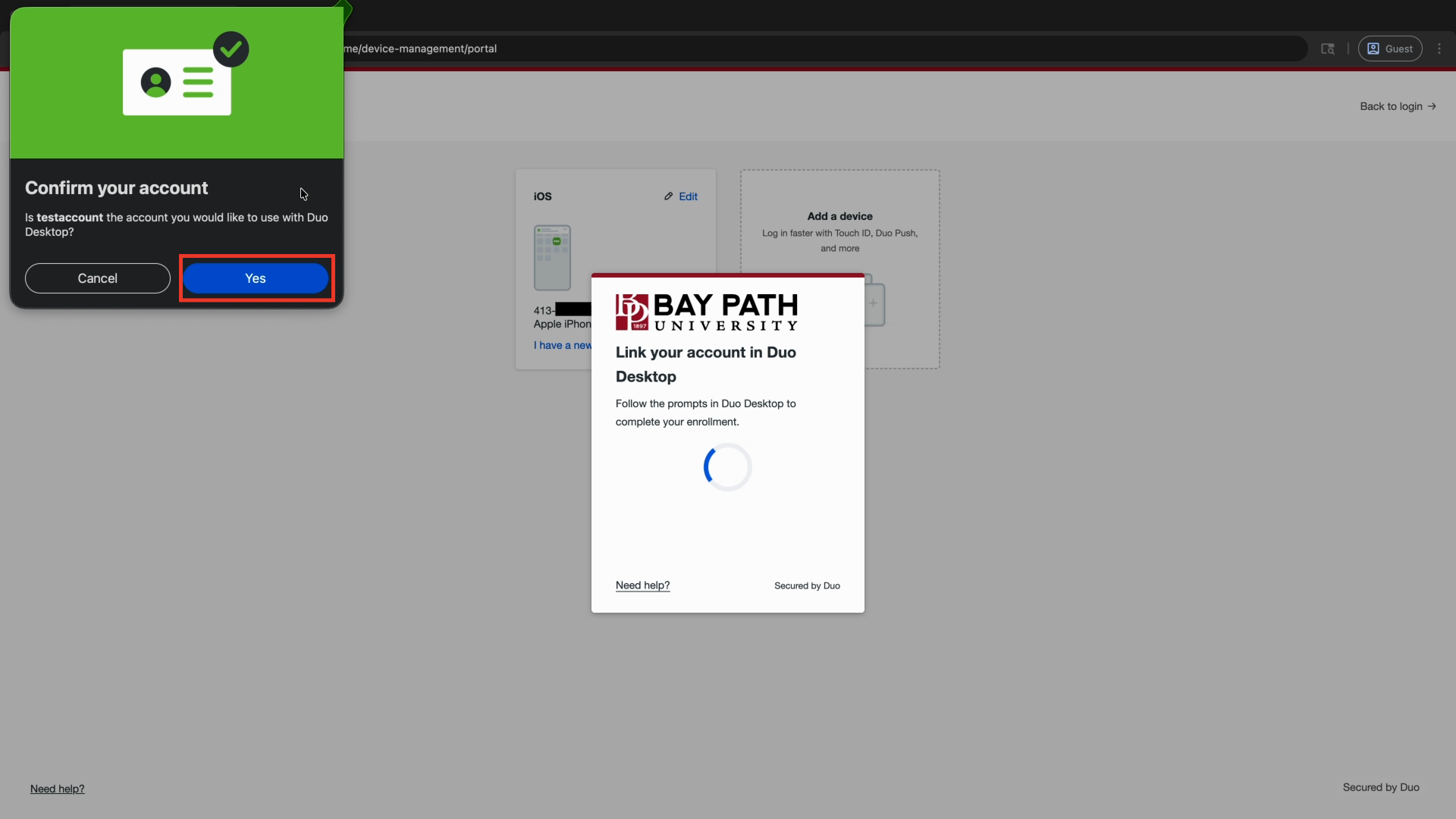
A Duo Desktop window will open, asking you to confirm your account. Select Yes.
-
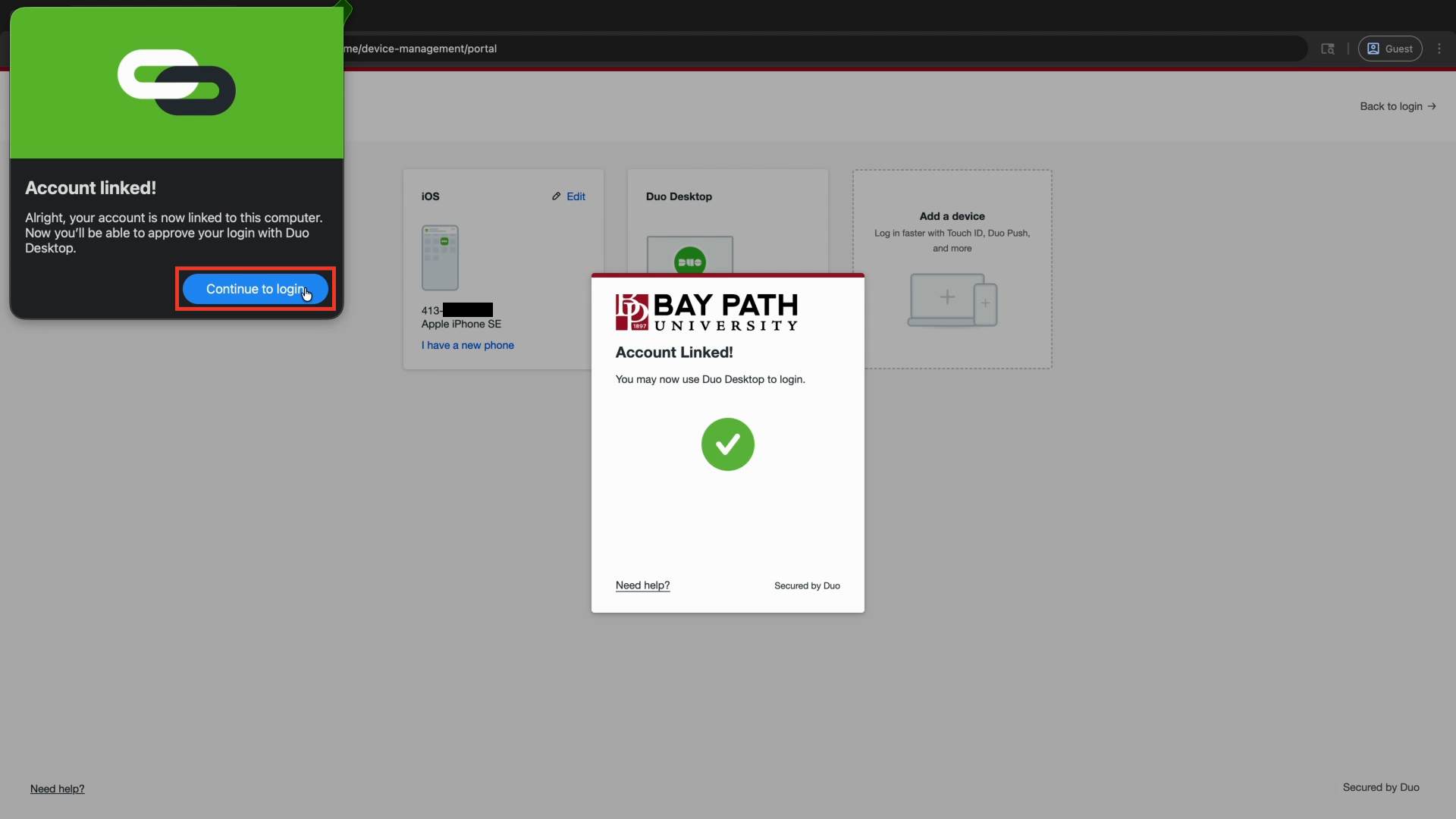
Once you see Account linked!, select Continue to login.
-
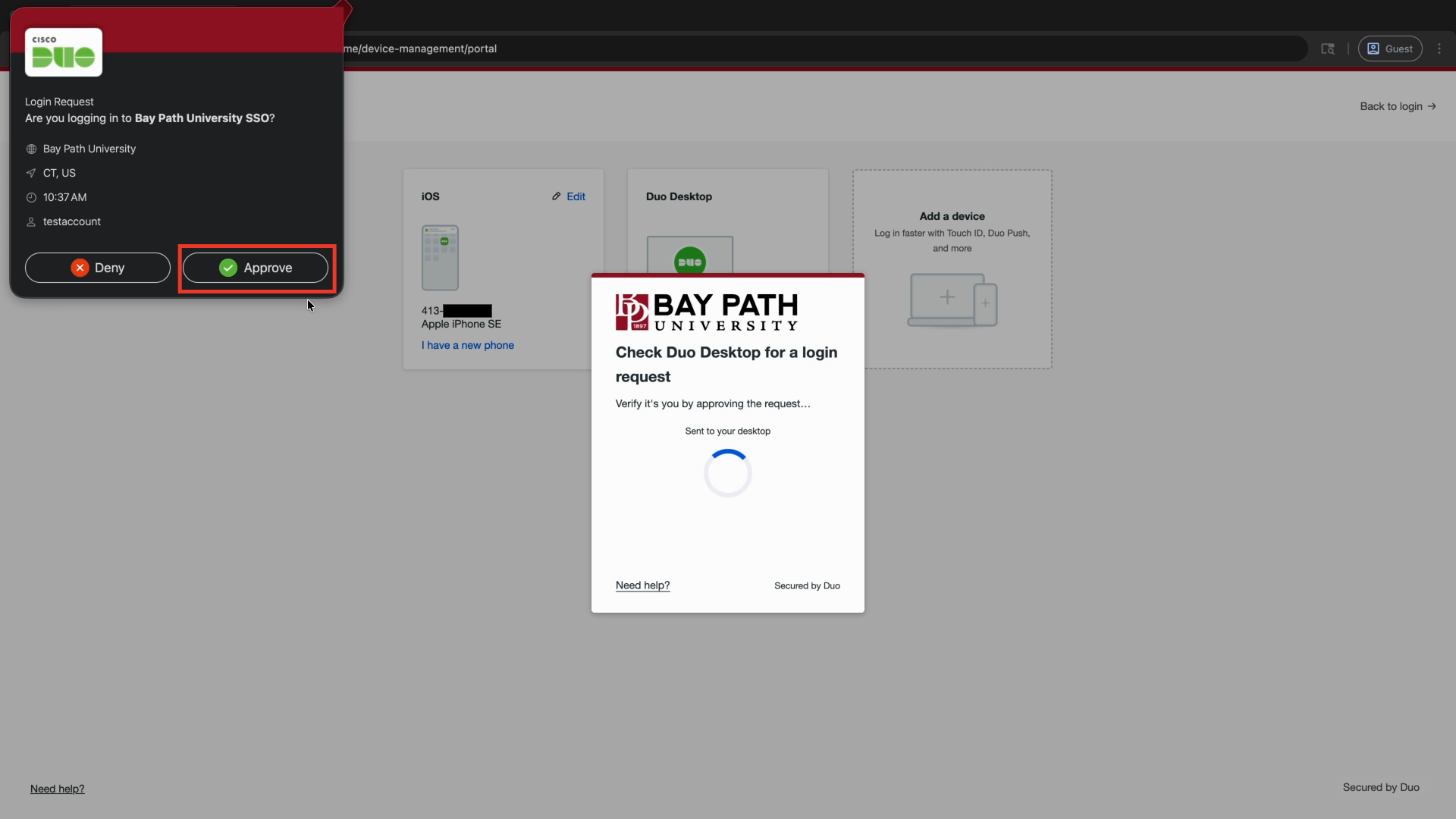
Approve the Duo Desktop Push notification.
-
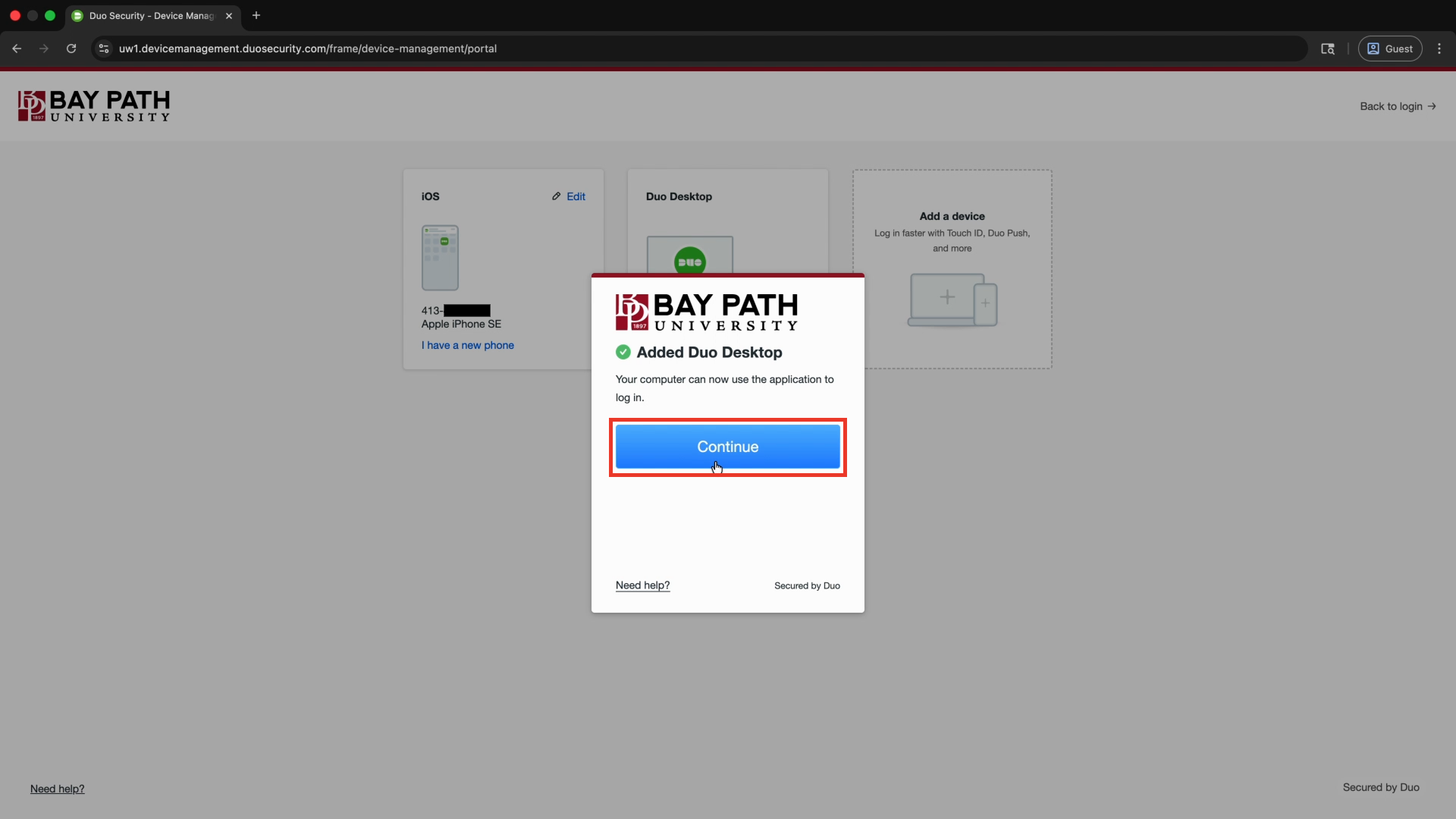
On the Added Duo Desktop window, select Continue.
-
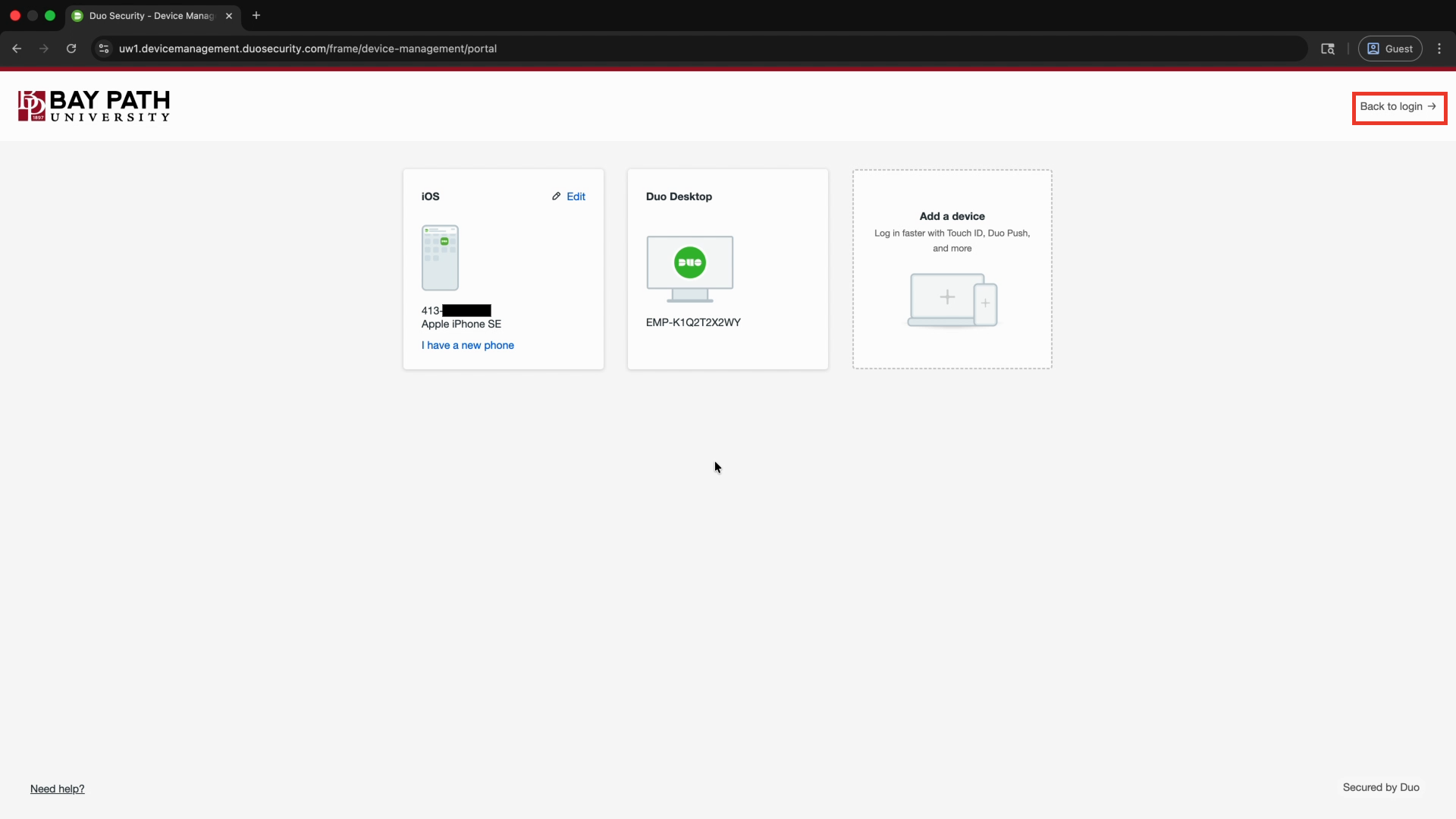
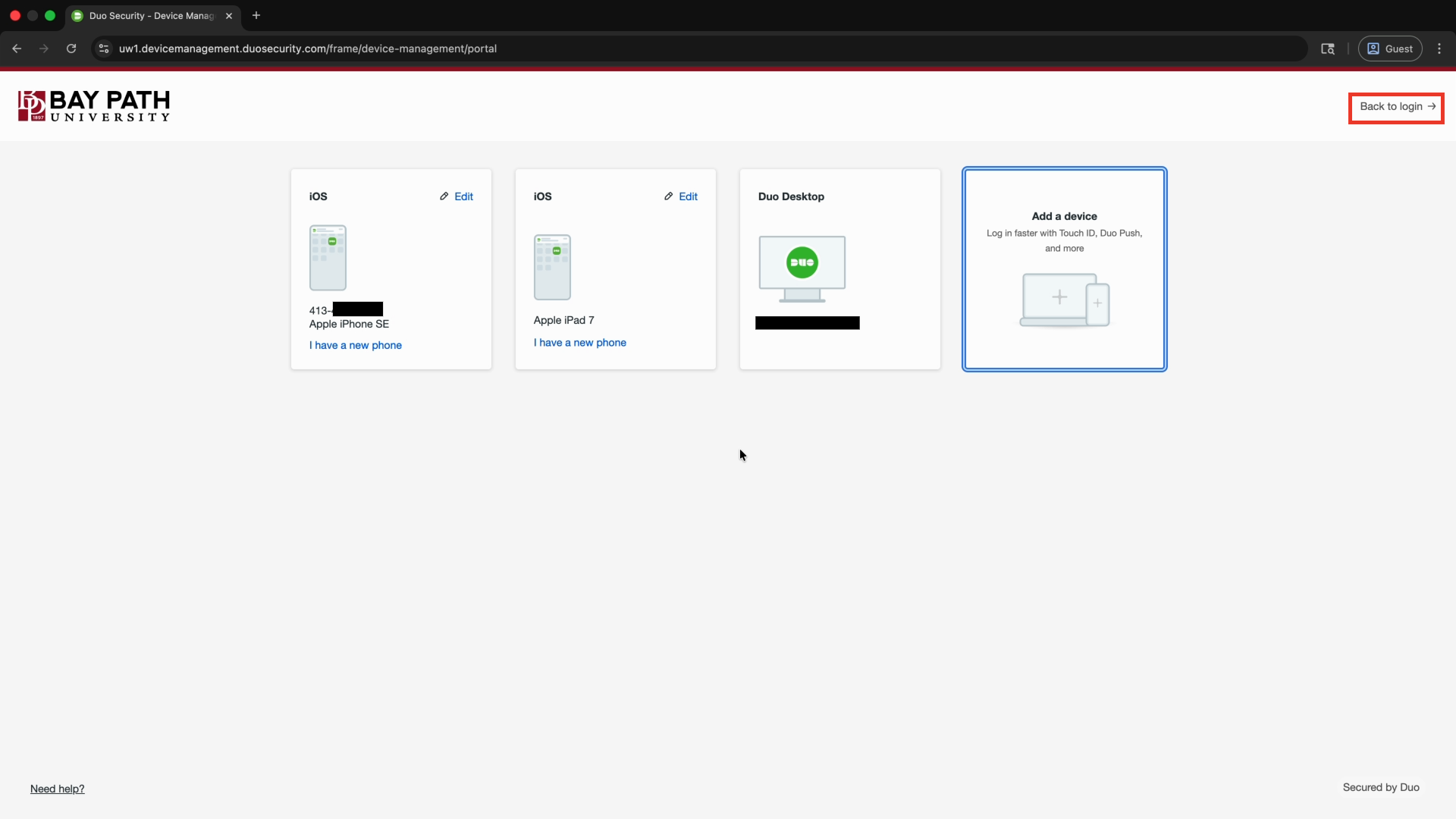
If you are finished managing devices, select Back to login to continue logging in to your Bay Path account.
Adding a Tablet
-
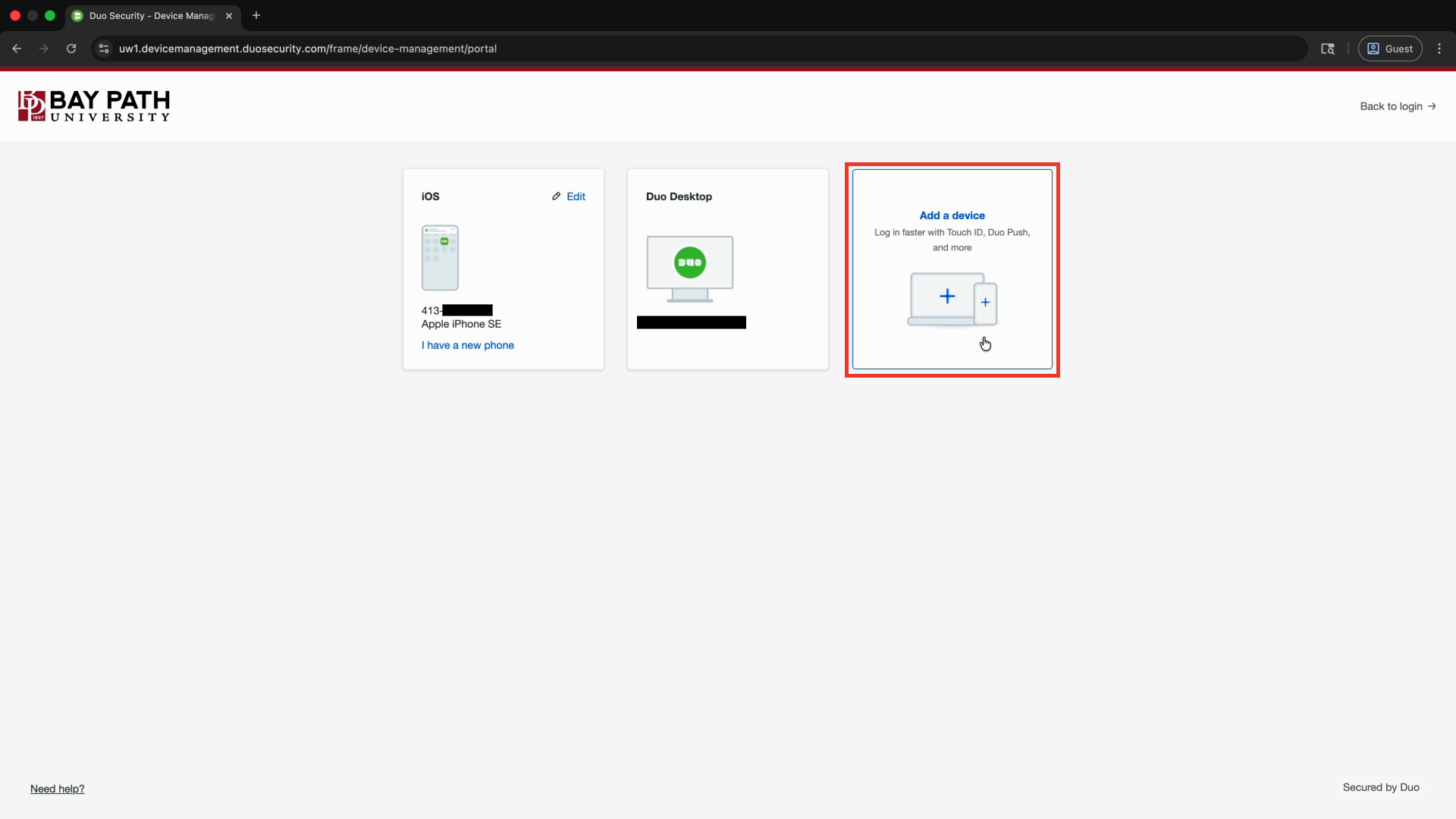
Select Add a device.
-
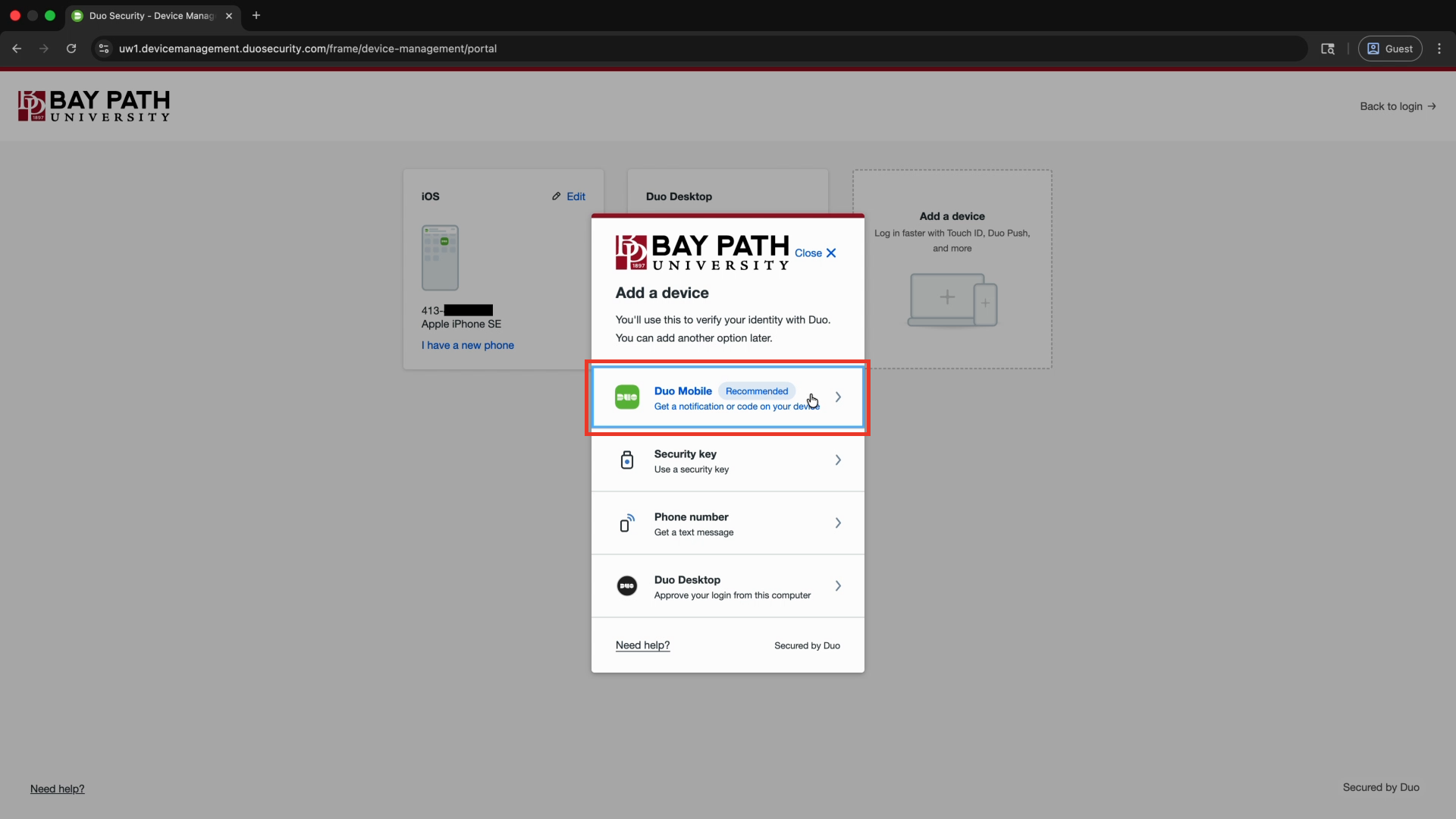
From the Add a device menu, select Duo Push.
-
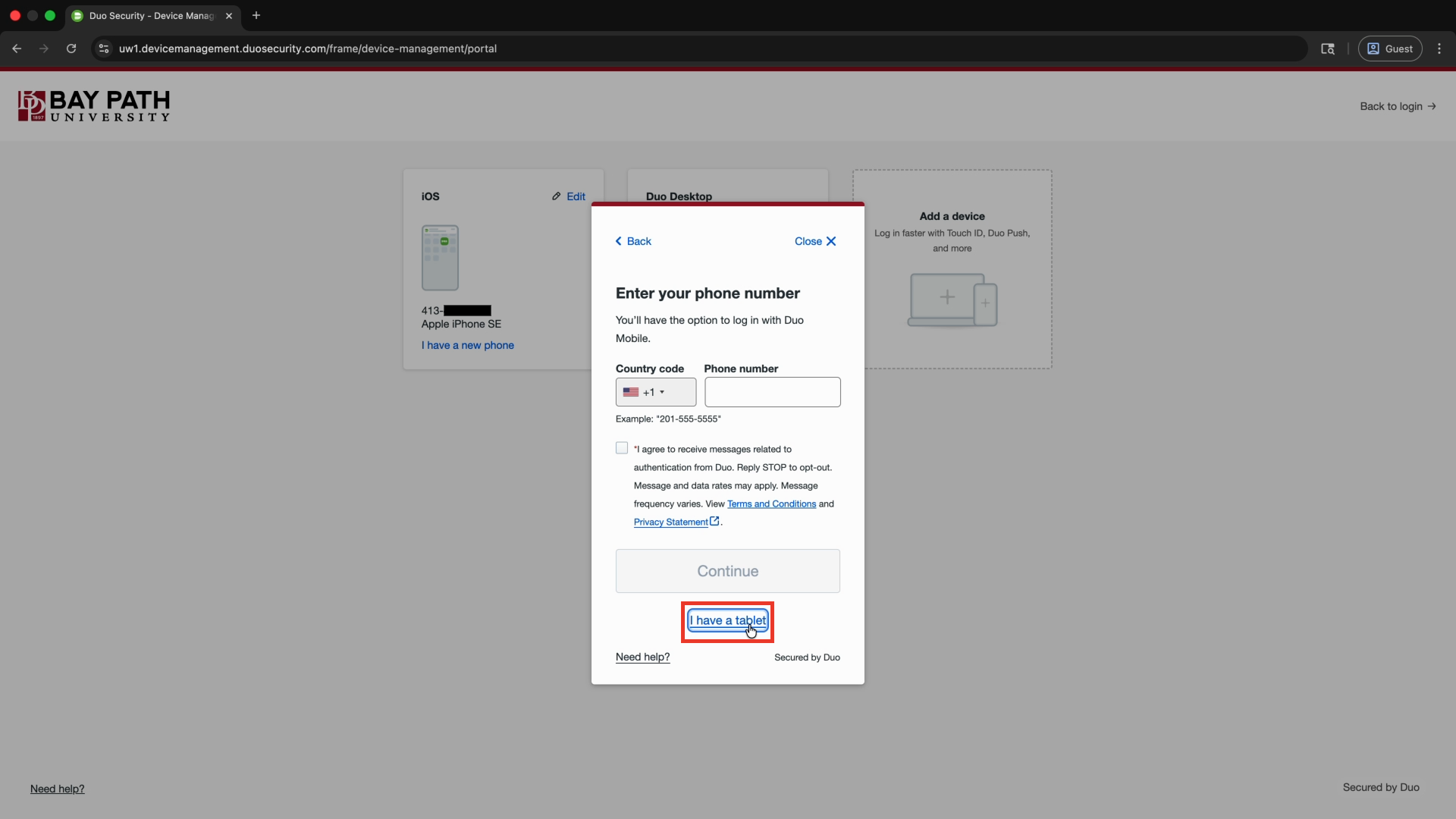
Select I have a tablet.
-
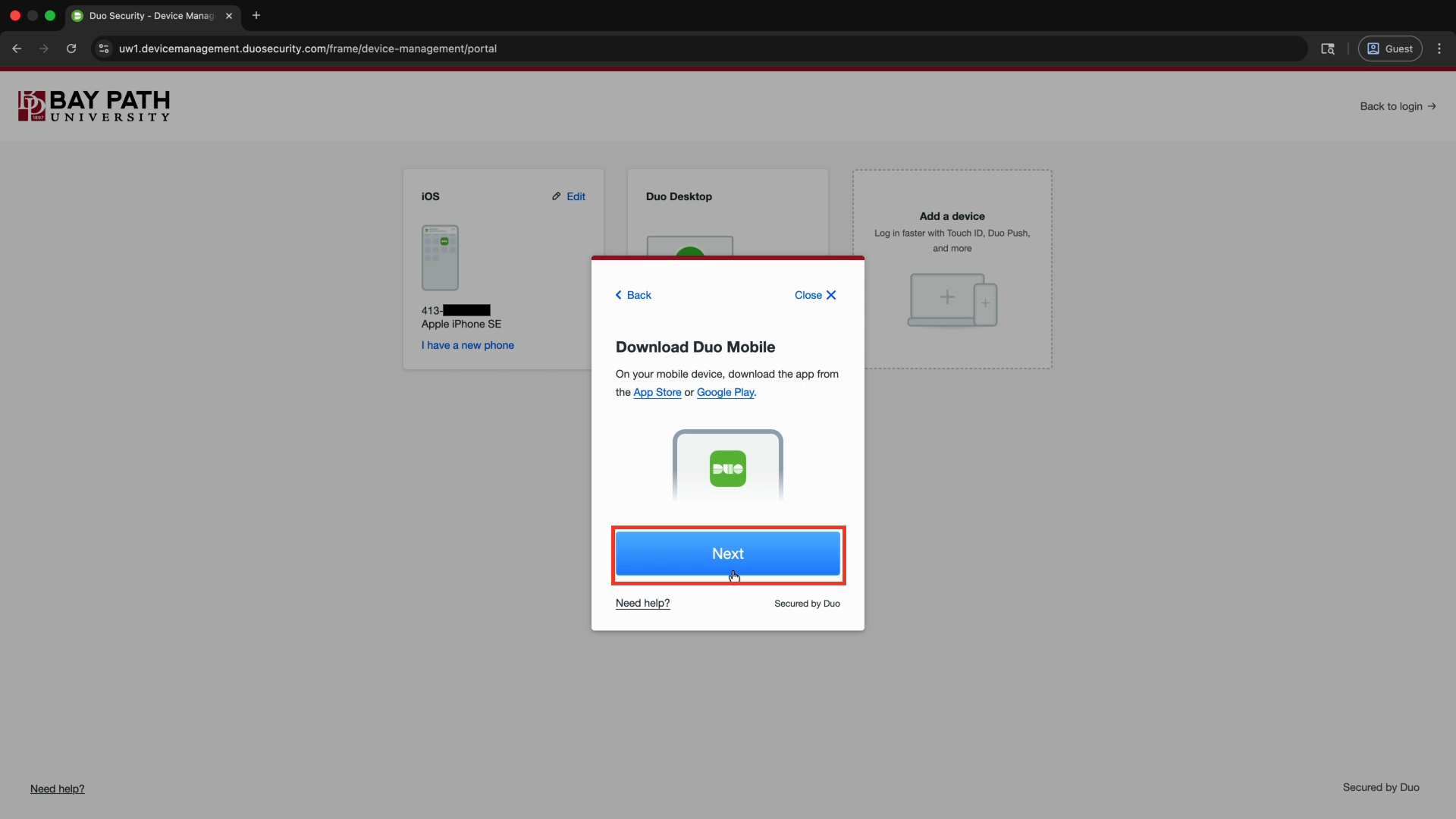
You will now need to install Duo Mobile on your tablet. On your mobile device, browse to your App store and download Duo Mobile.
-
Once you have Duo Mobile installed on your mobile device, select Next on your computer.
-
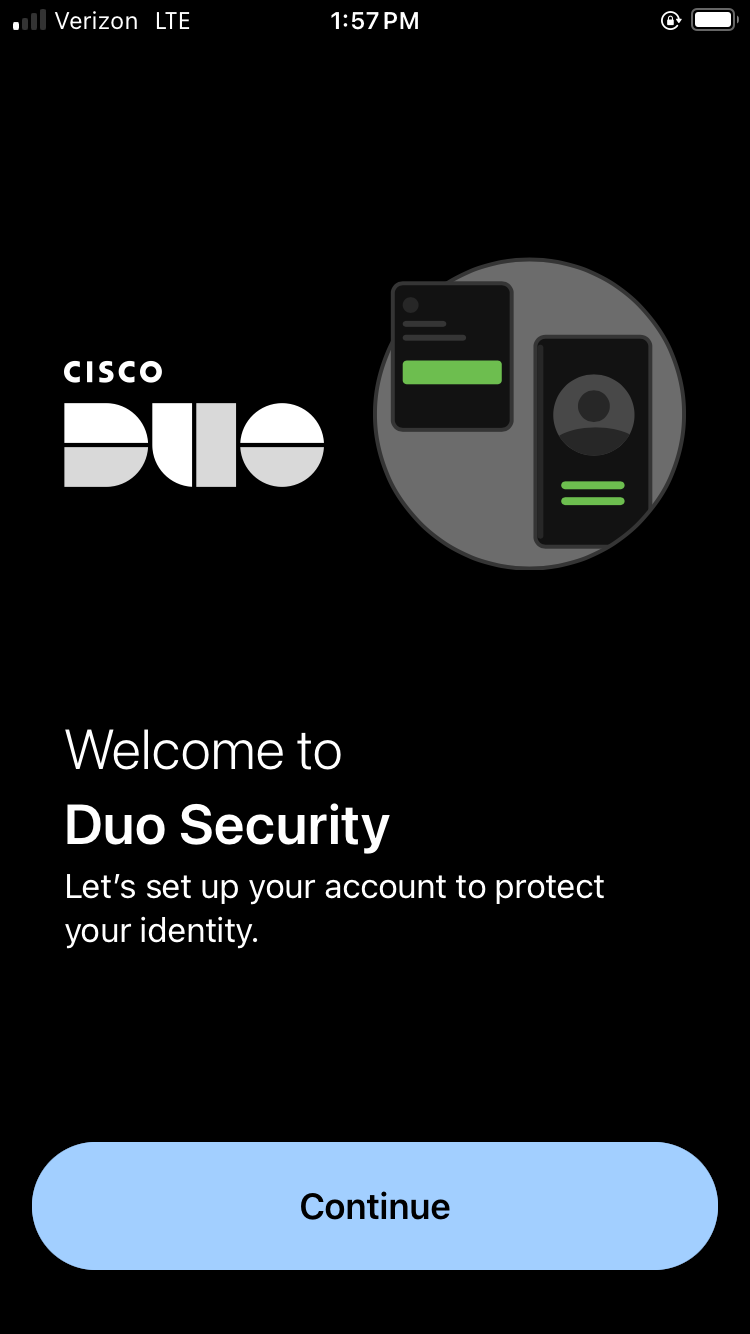
On your mobile device, open Duo Mobile. Select Continue.
-
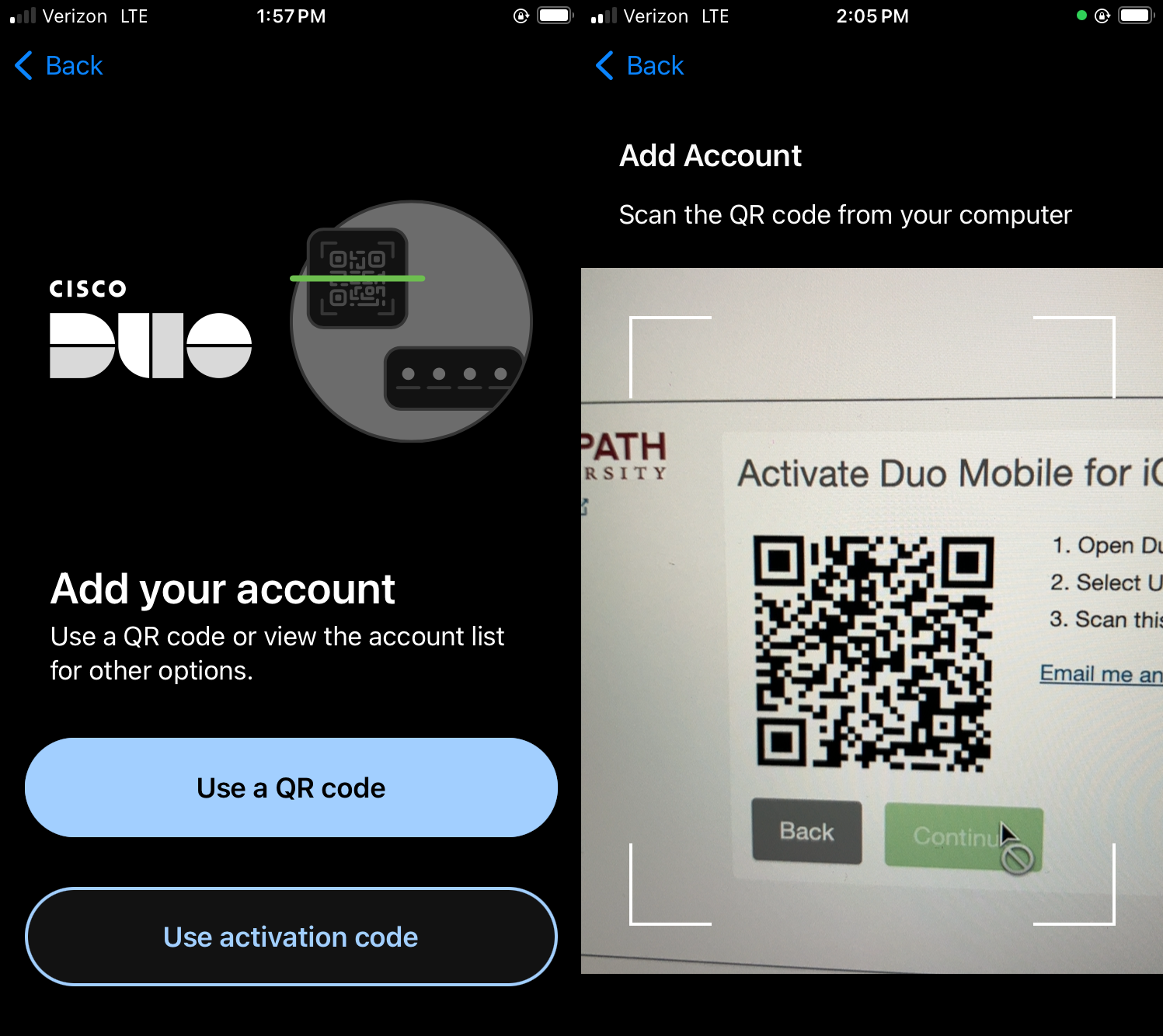
Select Use a QR code, then scan the QR code in your browser window.
-
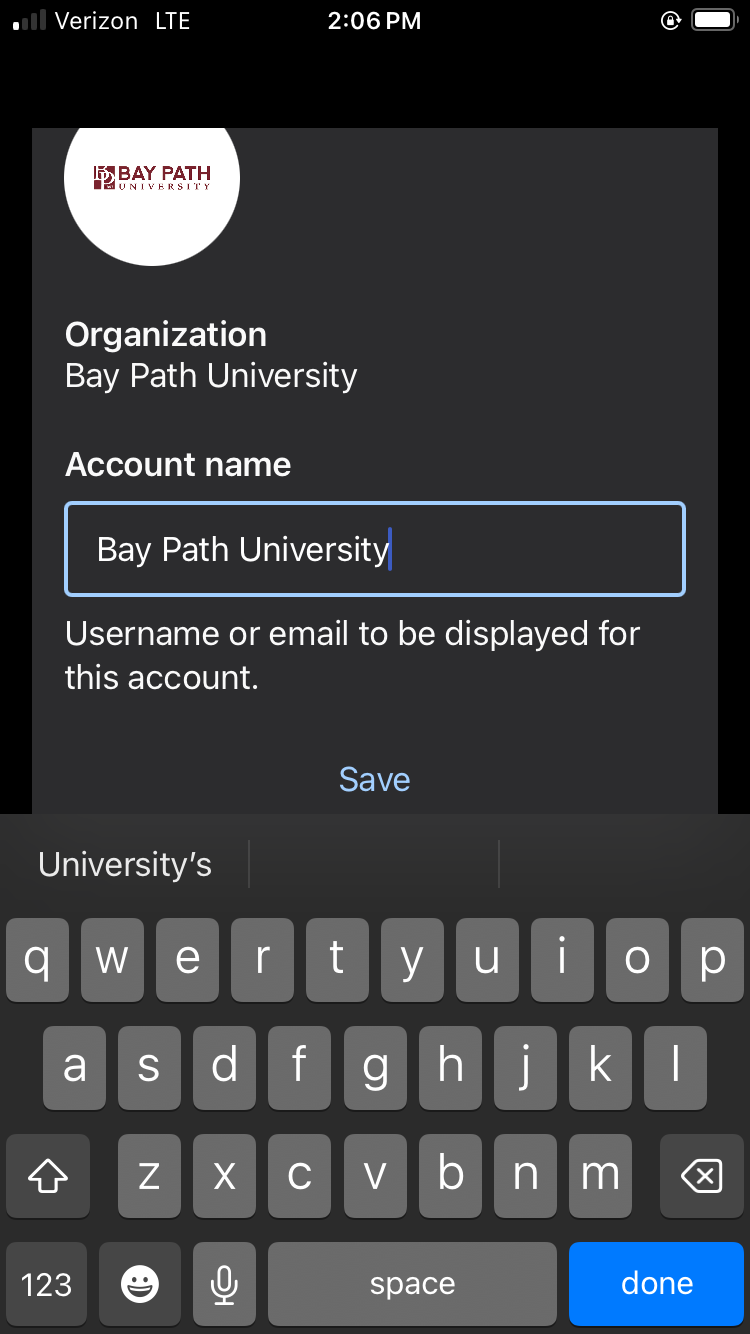
Select Save to add Bay Path to your Duo app.
-
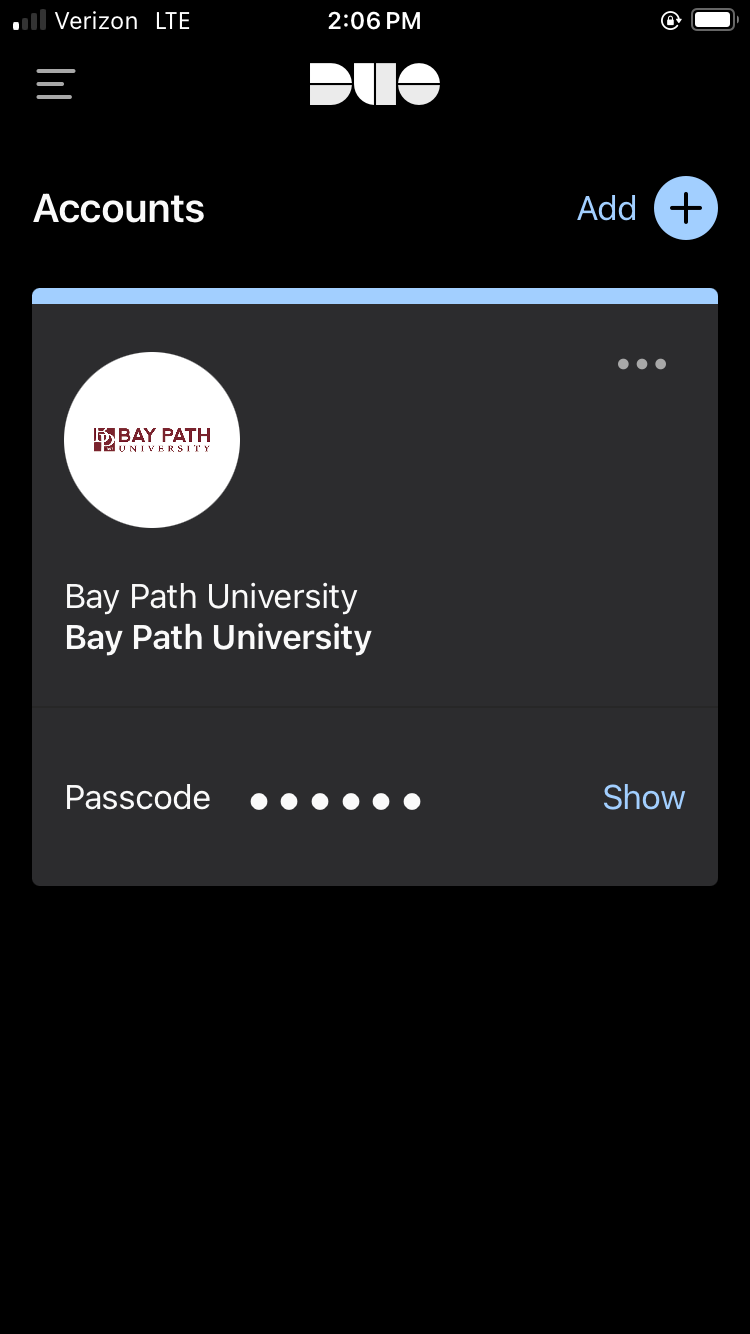
When you see Bay Path University under Accounts in the Duo app on your mobile device, you can now use Duo!
-
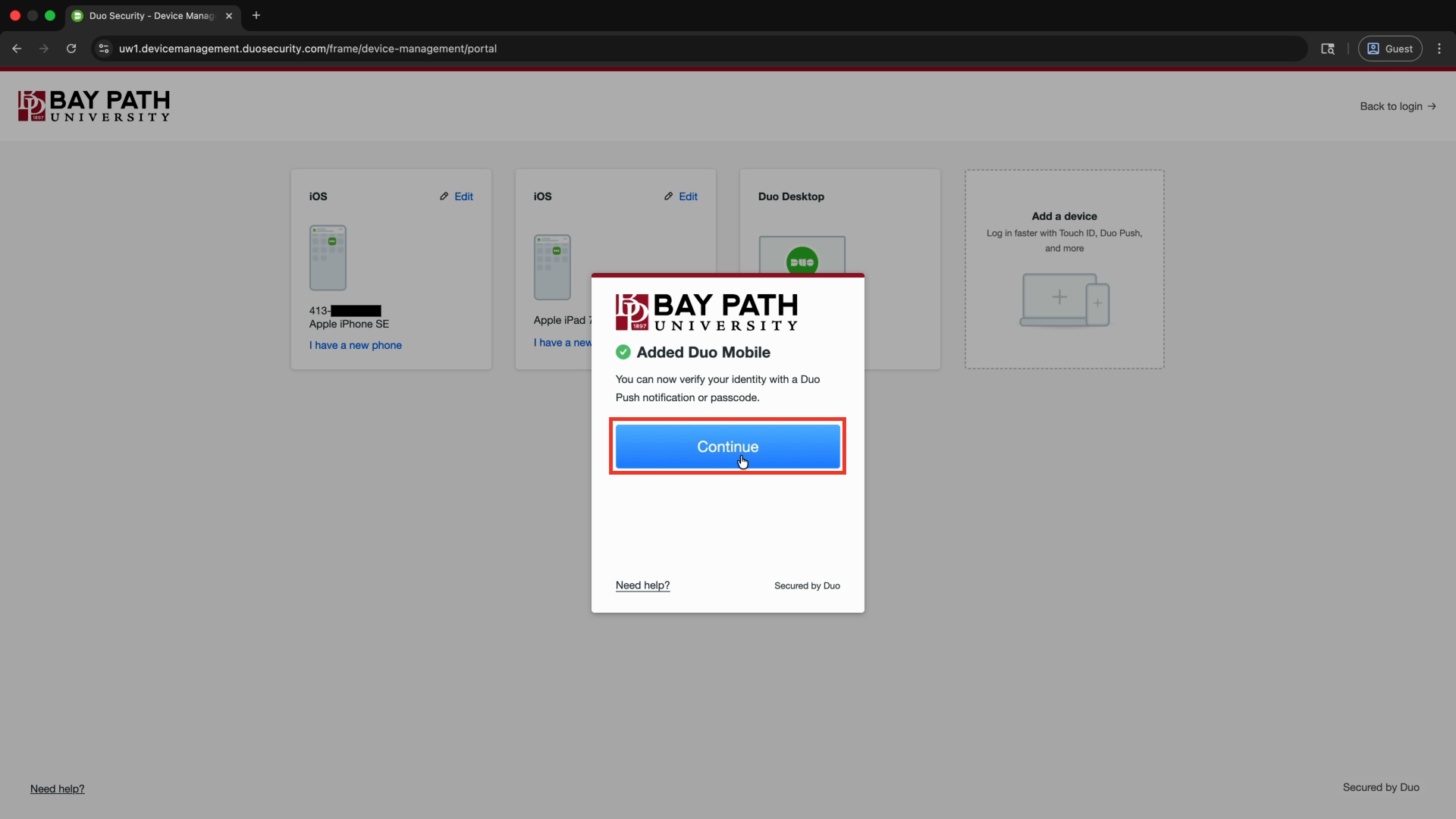
On your computer, select Continue. The device is now added.
-
If you are finished managing devices, select Back to login to continue logging in to your Bay Path account.
Adding Duo to a New Phone
If you got a new phone, but kept the same number, you can activate Duo Mobile on your new device! Use these instructions to activate Duo.
-
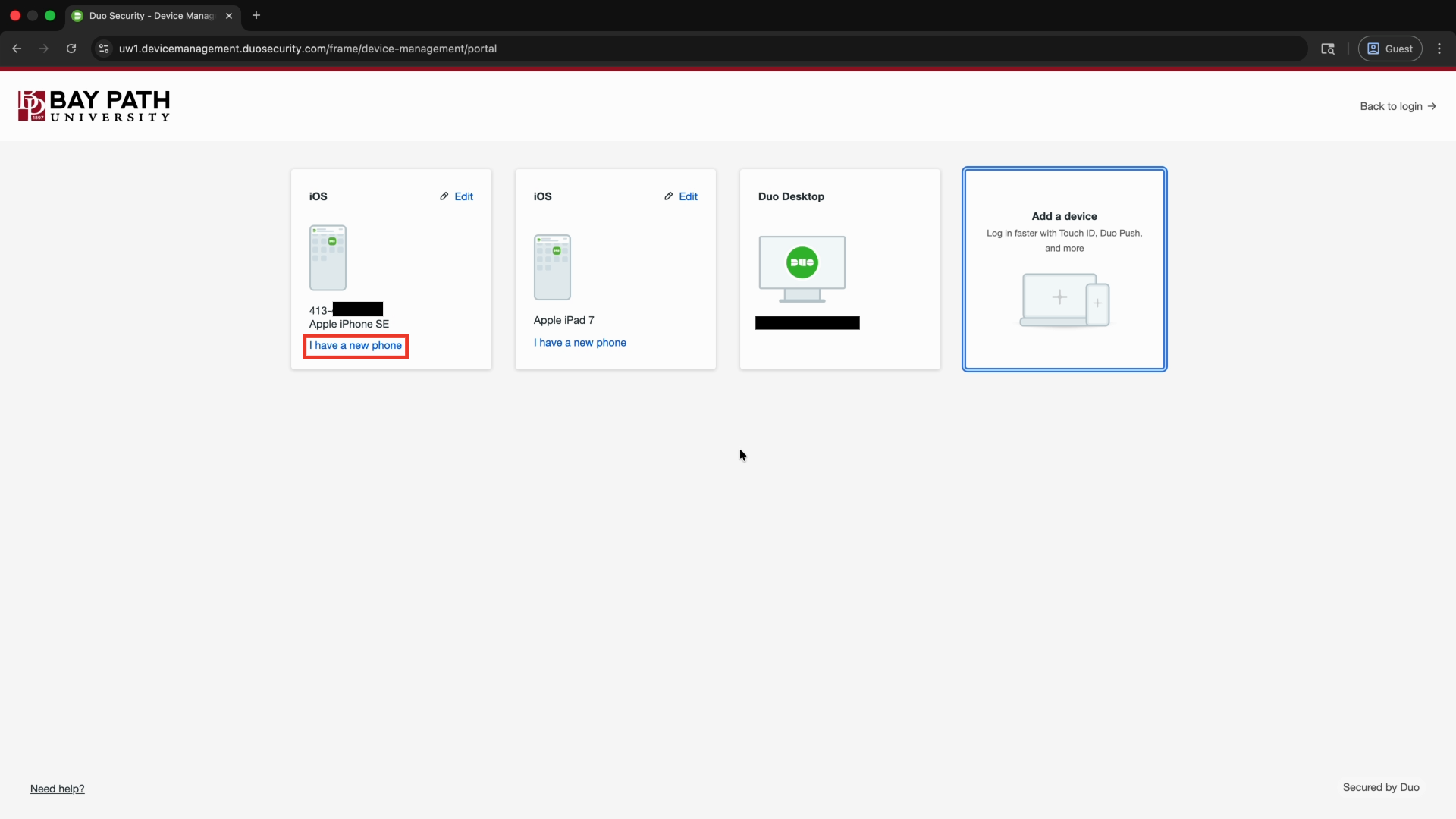
Find your phone in the devices list, select I have a new phone.
-
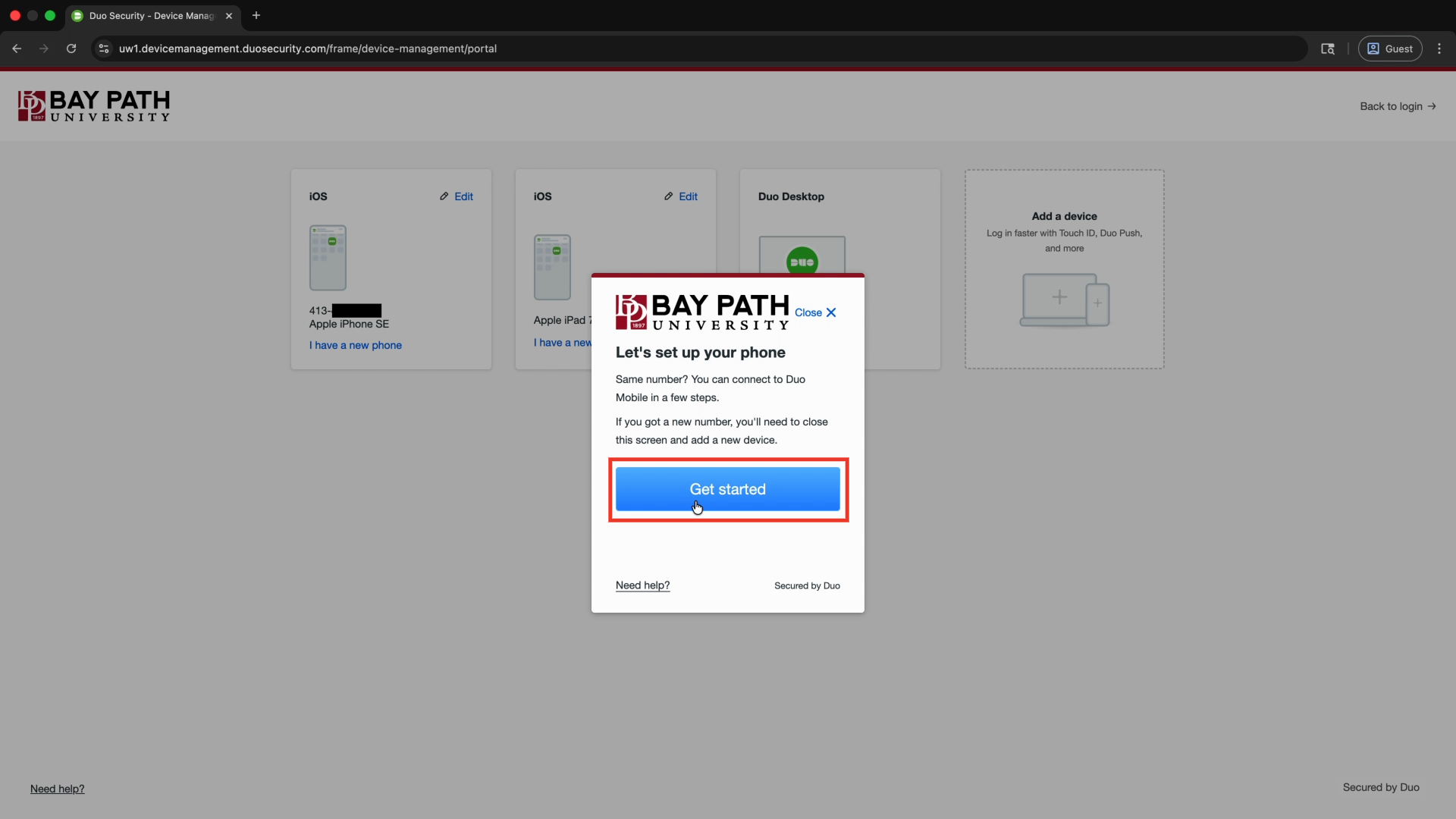
On the Let’s set up your phone window, select Get started.
-
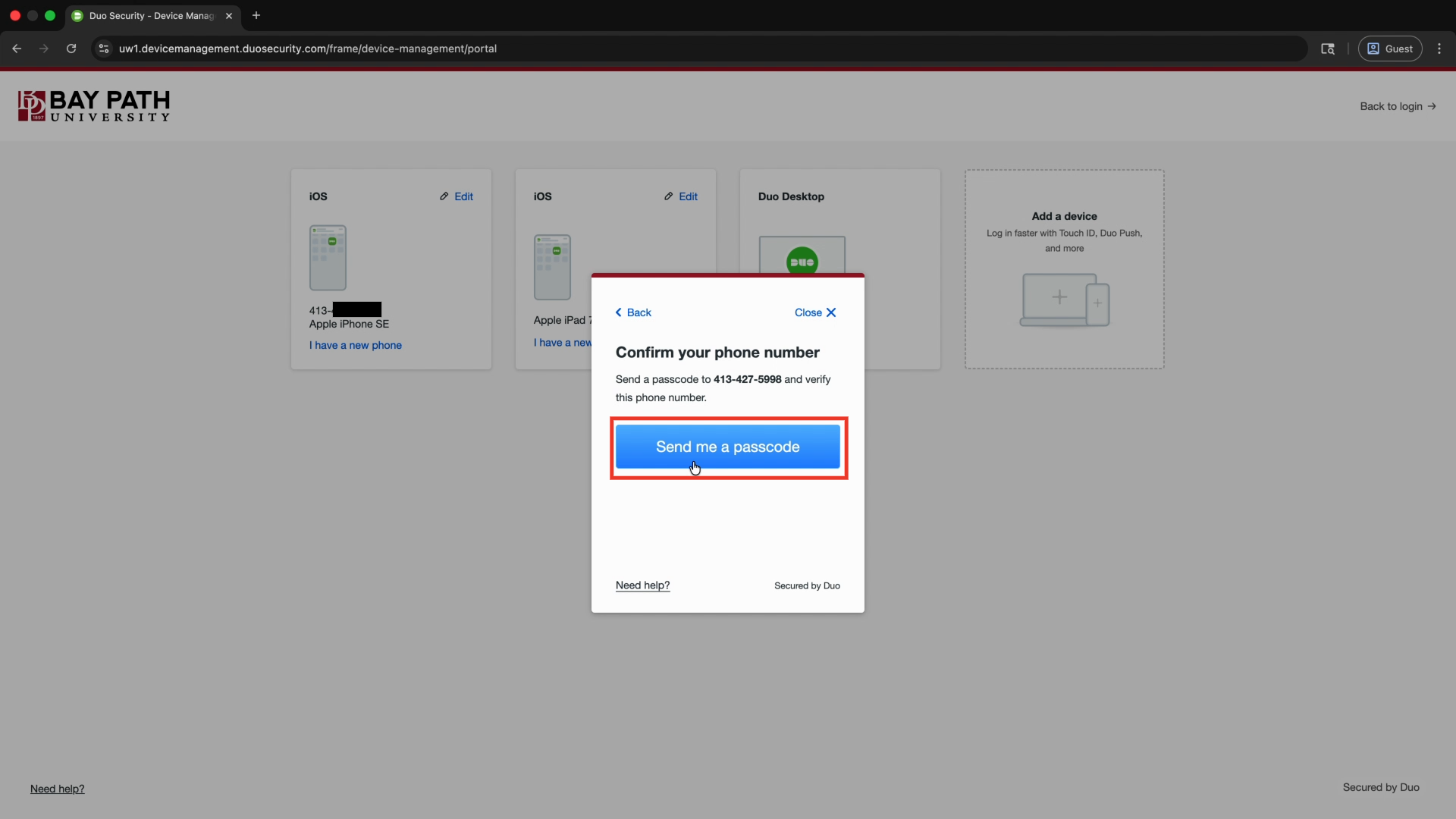
On the Confirm your phone number window, select Send me a passcode. You will receive a text message with a passcode.
-
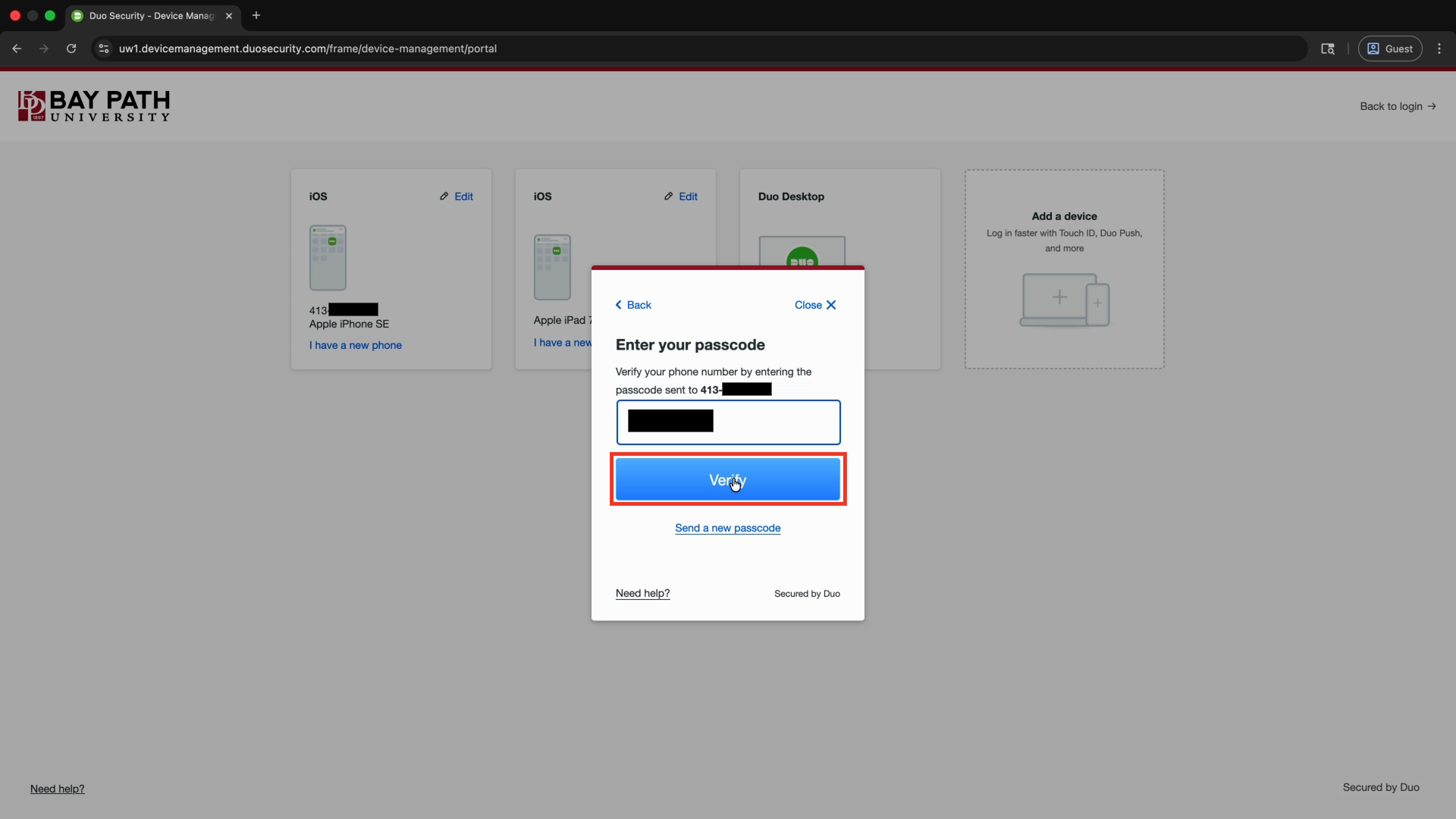
Enter the passcode you received, then select Verify.
-
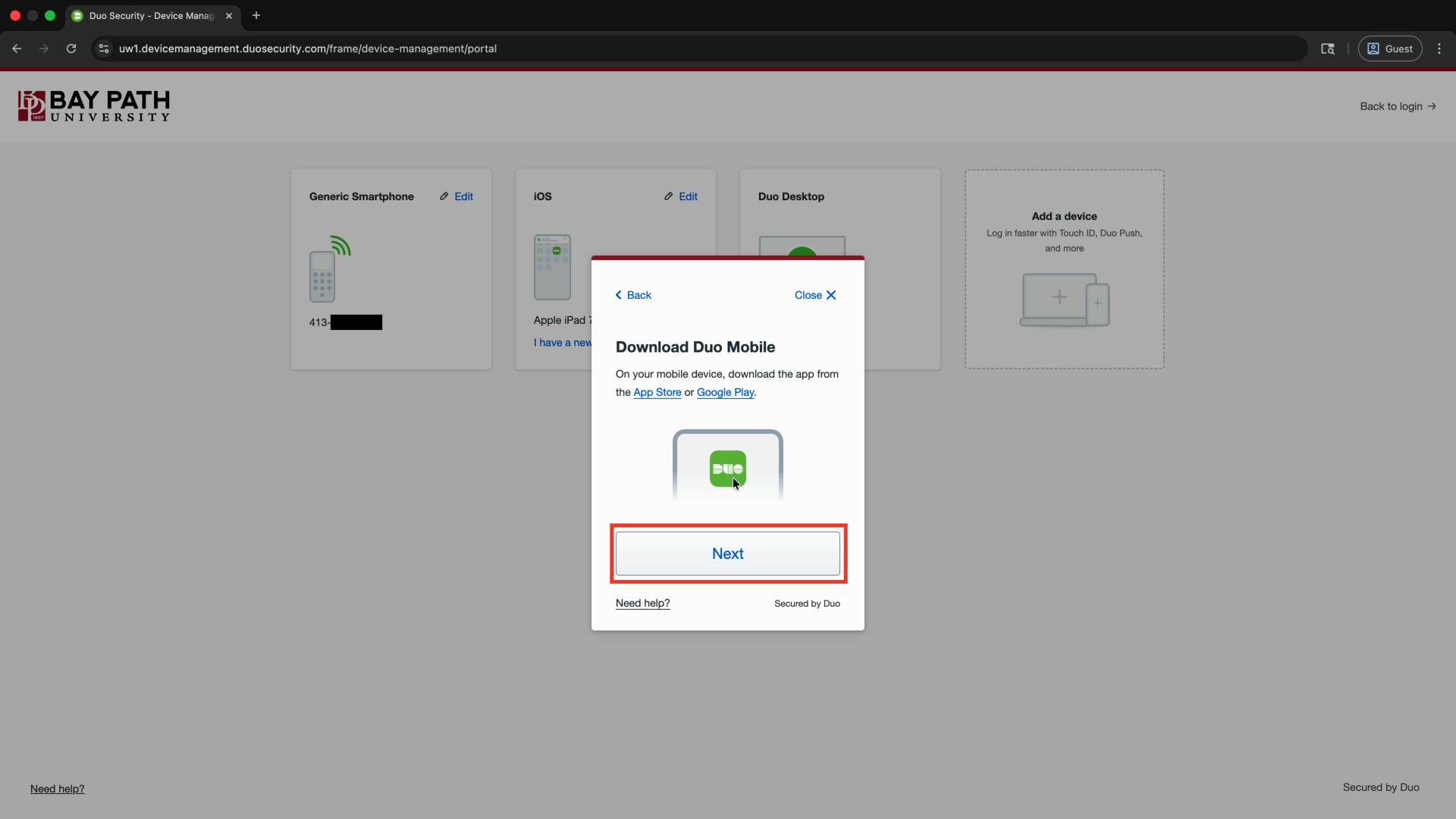
If you do not have Duo Mobile installed on your mobile device, you will need to install it. On your mobile device, browse to your App store and download Duo Mobile.
-
Once you have Duo Mobile installed on your mobile device, select Next on your computer.
-
On your mobile device, open Duo Mobile. Select Continue.
-
Select Use a QR code, then scan the QR code in your browser window.
-
Select Save to add Bay Path to your Duo app.
-
When you see Bay Path University under Accounts in the Duo app on your mobile device, you can now use Duo!
-
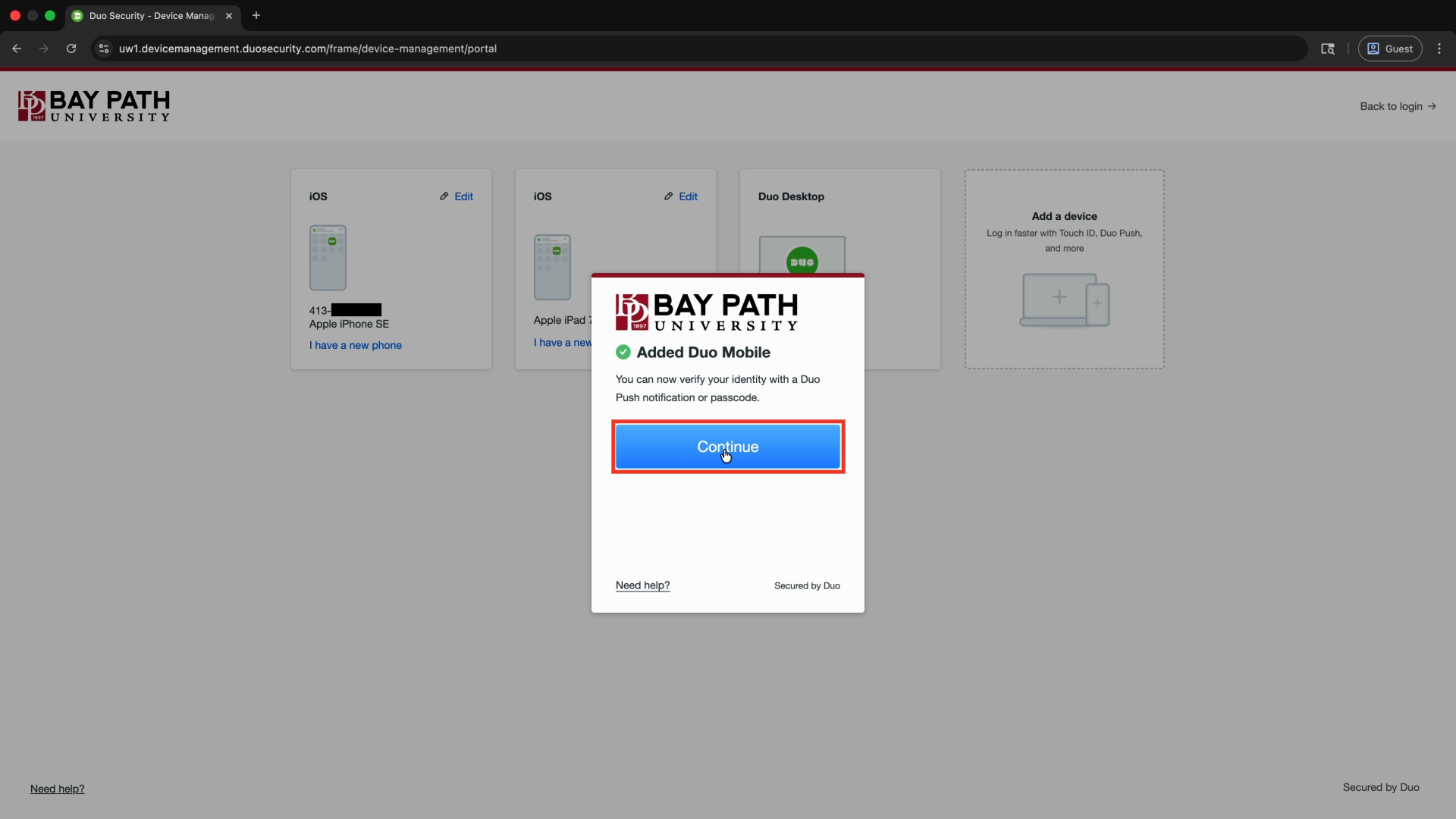
On your computer, select Continue.
-
If you are finished managing devices, select Back to login to continue logging in to your Bay Path account.