
Need Additional Help? If you need further assistance after reading this article, please contact the IT helpdesk via email at techsupport@baypath.edu or by phone at (413)565-1487.
The first time you try to sign into one of the University's services, such as Gmail or the My Bay Path portal, you'll be prompted to enroll in Duo, the University's Multi-Factor Authentication service. The enrollment process will walk you through how to set up a device to be used as a second factor to identify who you are. The University supports the following device types:
-
Smartphones: Your smartphone must be running Android or iOS (iPhone).
-
Tablets: Your tablet must be running Android or iOS.
-
Hardware Tokens: We support U2F compatible hardware tokens such as Yubikey.
-
Touch ID: If you have a newer Macbook Pro or Macbook Air and you have a Touch ID sensor, you can use the Touch ID sensor with Chrome.
-
Duo Desktop: A program available for Windows, MacOS, and Linux to authenticate through Duo.
We recommend using Duo Mobile on your smartphone and Duo Desktop on your computer.
Setting up Duo Mobile
The following instructions will walk you through the enrollment process for a smartphone. While you can complete enrollment on a smartphone or tablet, we strongly suggest using a computer. During enrollment, you'll need to scan a QR code to link your device to Duo, which is very difficult if you're using the same smartphone or tablet you’ll register as your second factor.
-
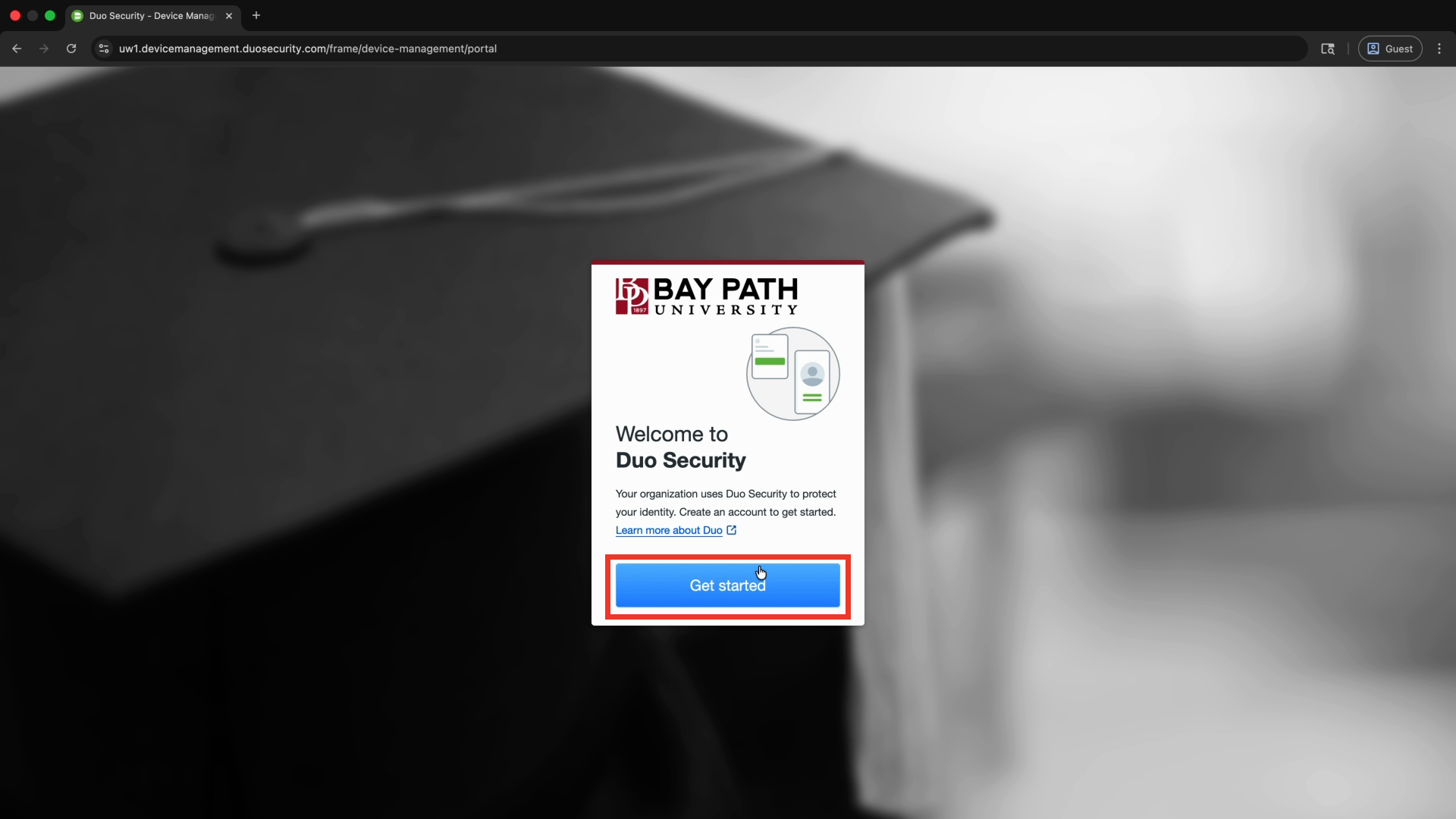
When you first log into your Bay Path Gmail or Canvas, you will see the Welcome to Duo Security screen. Select Get Started.
If you see the screen below, select Skip for now.
.png?cb=f94929761a28c060fd65ecff6261804b)
-
From the First, add a device menu, select Duo Mobile.
.png?cb=9322201691f30af5ba003b447010a5d4)
-
Enter your phone number and check the box next to the terms and conditions. Select Continue.
.png?cb=a0404d3549f22cfa8bf4736de6725a7c)
-
Verify that your phone number is correct, then select Yes, it’s correct.
.png?cb=efb0d3791d199e5e6fbaf7330b64dce0)
-
You will now need to install Duo Mobile on your mobile device. On your mobile device, browse to your App store and download Duo Mobile.
-
Once you have Duo Mobile installed on your mobile device, select Next on your computer.
.png?cb=7503c0a5cf8b36fd9458ed06fb2e2c43)
-
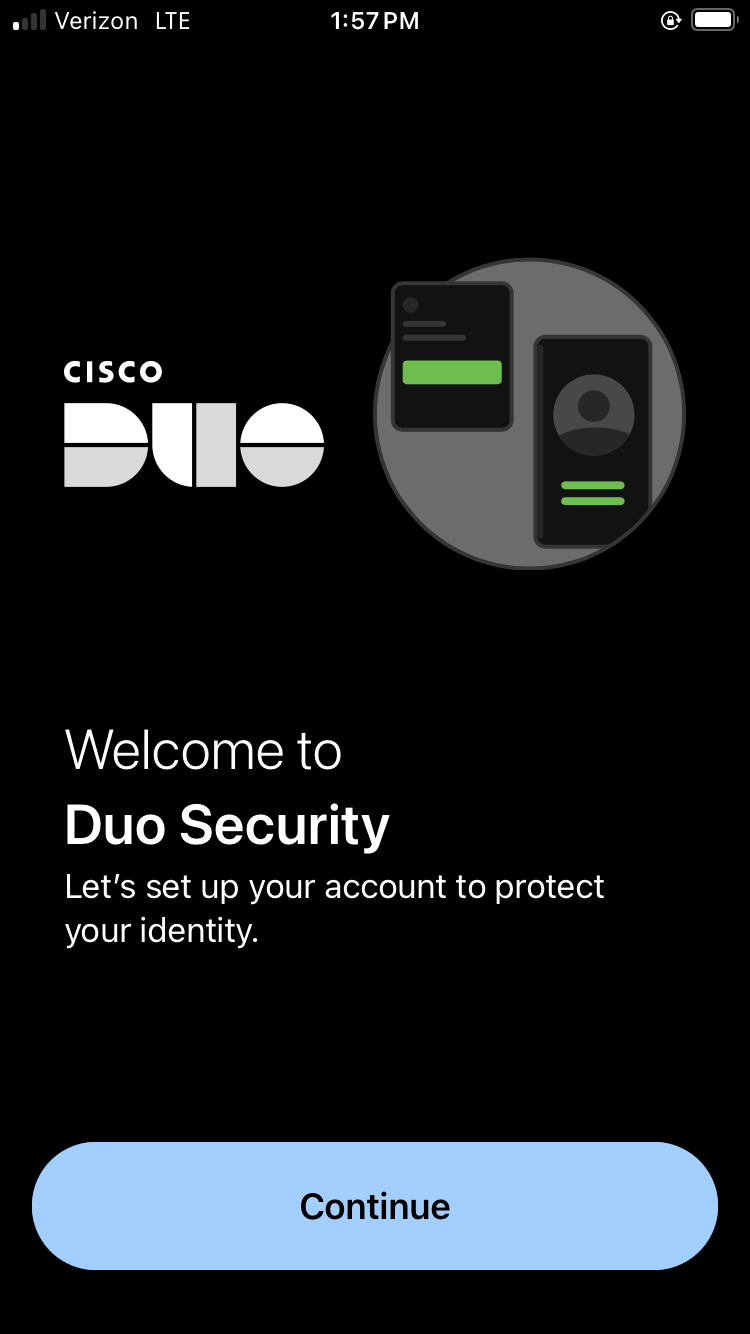
On your mobile device, open Duo Mobile. Select Continue.
-
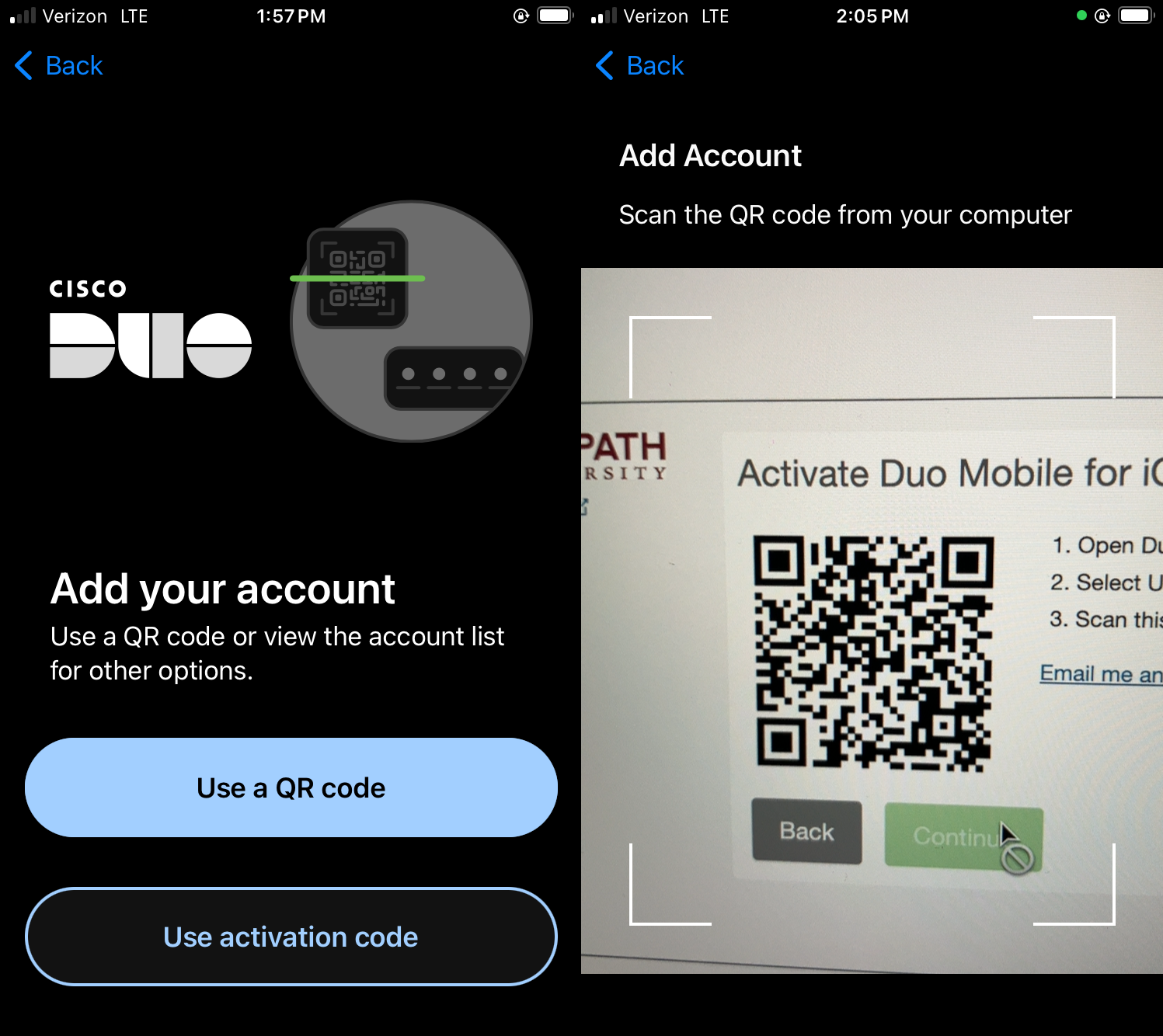
Select Use a QR code, then scan the QR code in your browser window.
-
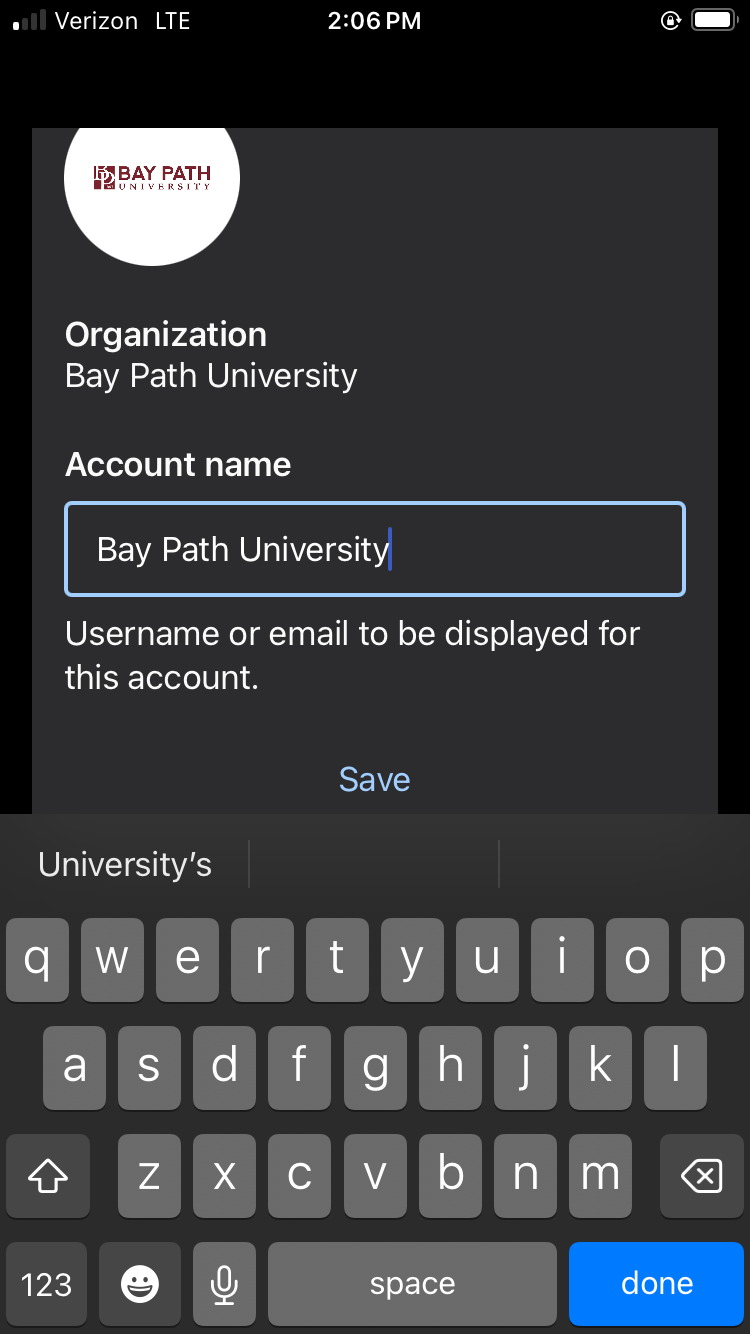
Select Save to add Bay Path to your Duo app.
-
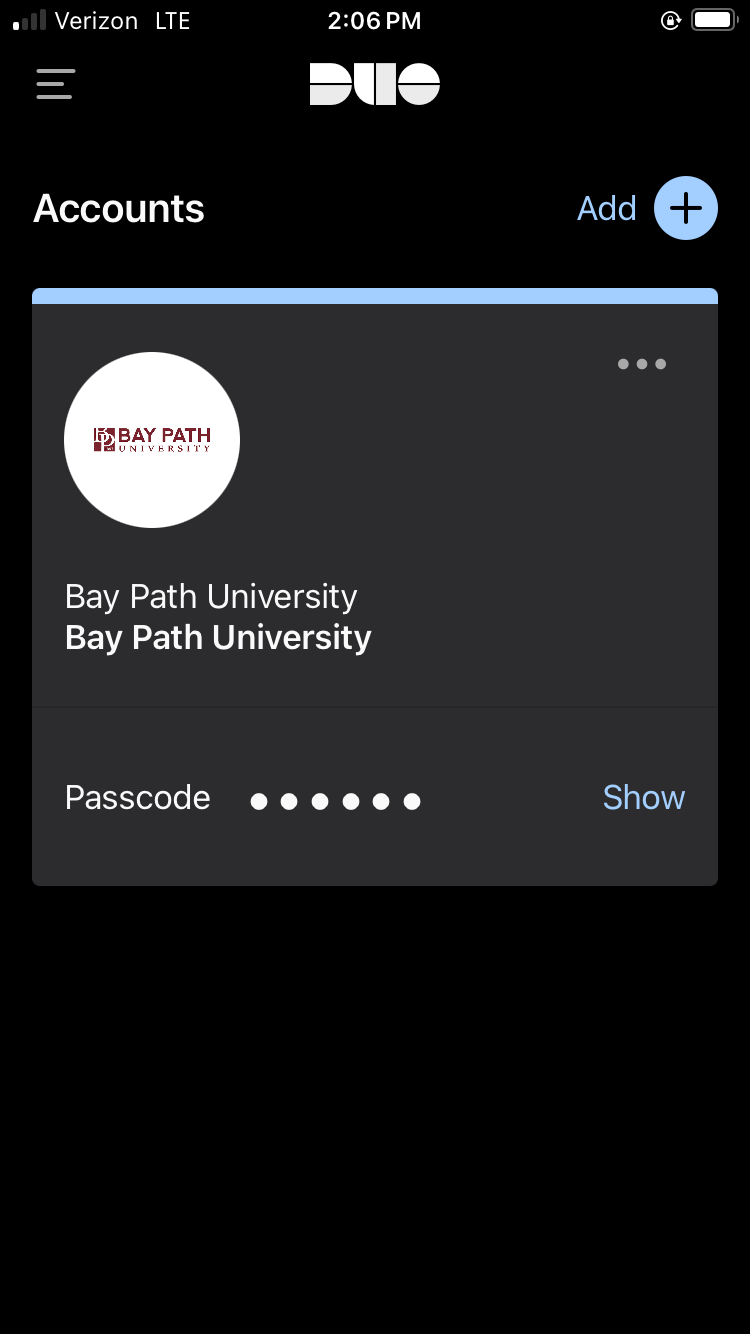
When you see Bay Path University under Accounts in the Duo app on your mobile device, you can now use Duo!
-
On your computer, select Continue.
.png?cb=afaa4bcbaff35a05c6af88e84273f7ac)
Setting up Duo Desktop
We recommend using Duo Desktop on your computer. Before you set it up, you will need to install the program on your computer. Here are the links to install Duo Desktop for Windows, MacOS, and Linux: https://duo.com/docs/duo-desktop-faq#install-upgrade-and-uninstall
-
From the Add one more device menu, select Duo Desktop.
.png?cb=ae09ae0093e3f63743cfdf872f2dc596)
-
Your browser will ask for permission to access other apps and services on the device. Select Allow.
.png?cb=0db5717404ad562d5c5990056e957d97)
-
A Duo Desktop window will open, asking you to confirm your account. Select Yes.
.png?cb=1f6c752760d117feb55b98415d606869)
-
Once you see Account linked!, select Continue to login.
.png?cb=3cdd7d492e4cc8f6b02c1f3fb67a3187)
-
You can now log in using Duo Mobile or Duo Desktop!
You can select Other options at the Duo Prompt to select another device to use for authentication, such as Duo Desktop.