
Need Additional Help? If you need further assistance after reading this article, please contact the IT helpdesk via email at techsupport@baypath.edu or by phone at (413)565-1487.
-
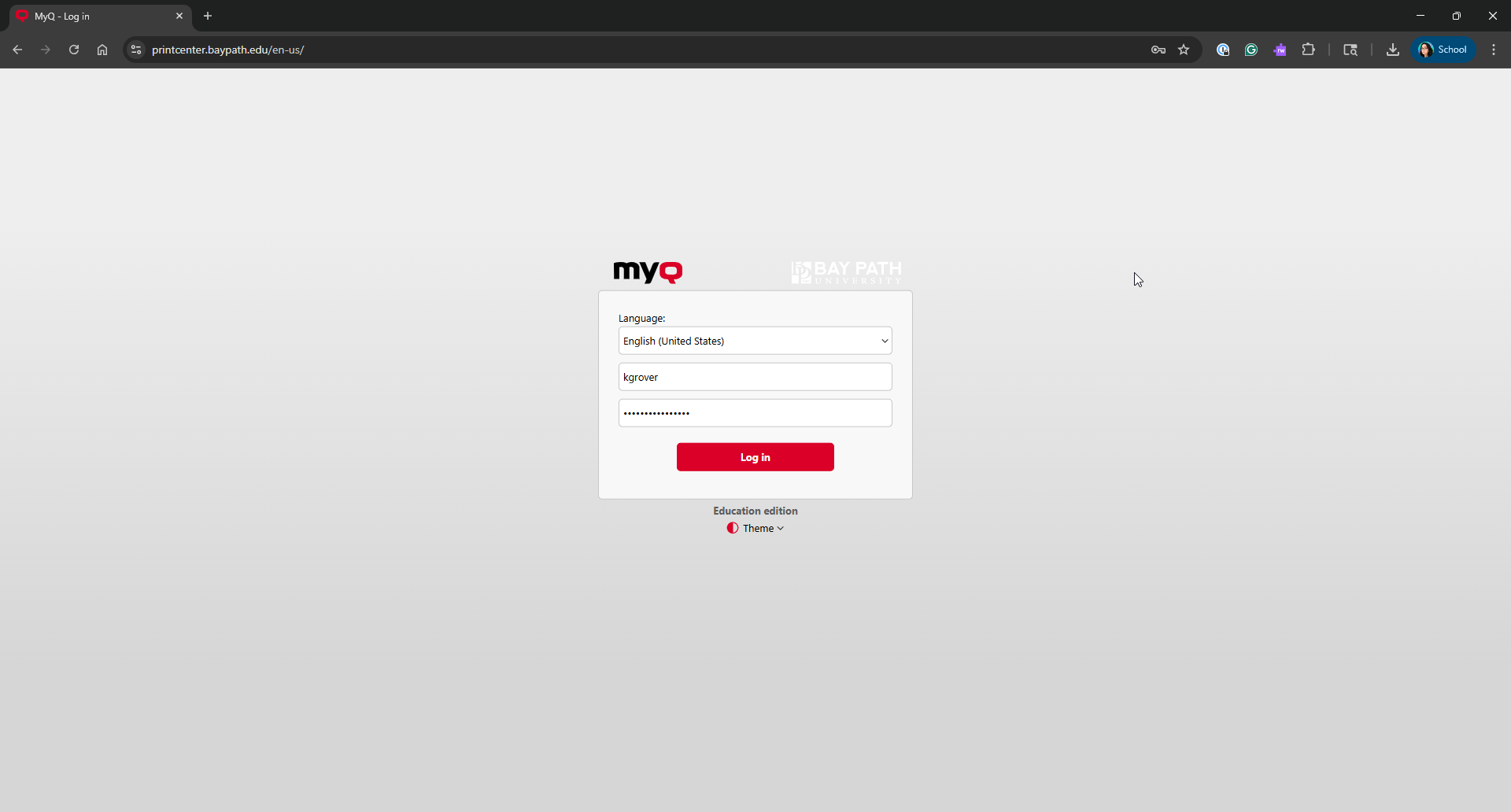
From a web browser, visit https://printcenter.baypath.edu/
-
Log in using your username and password.
For Bay Path users: Your username is everything before the @ symbol in your Bay Path email. (For example: fphant@baypath.edu has a username of fphant)
For Cambridge College users: Your username is firstname.lastname. (For example: fiona.phant00@go.cambridgecollege.edu has a username of fiona.phant)
-
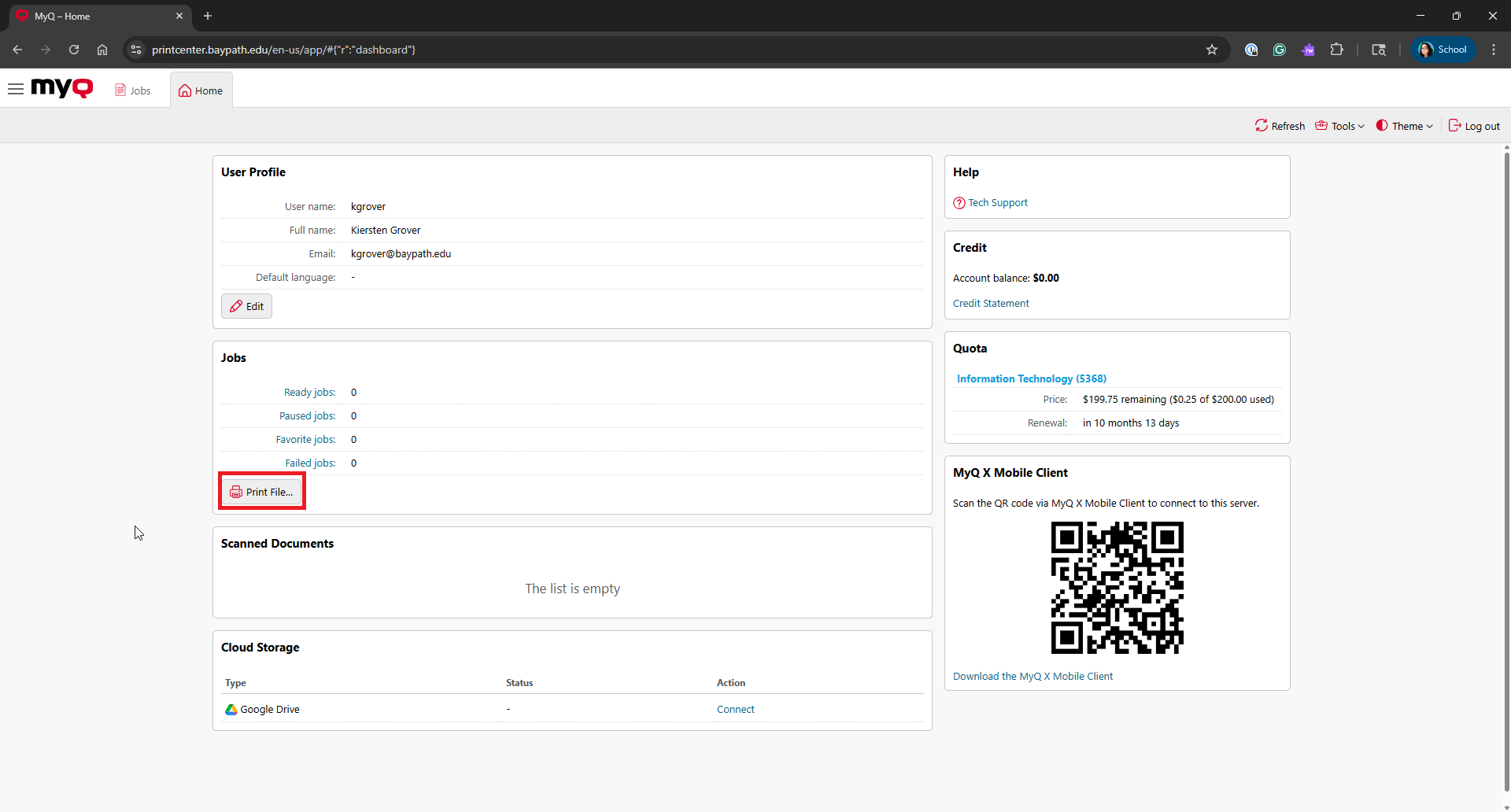
Under the Jobs widget, click Print File…
-
Click on Choose File.
-
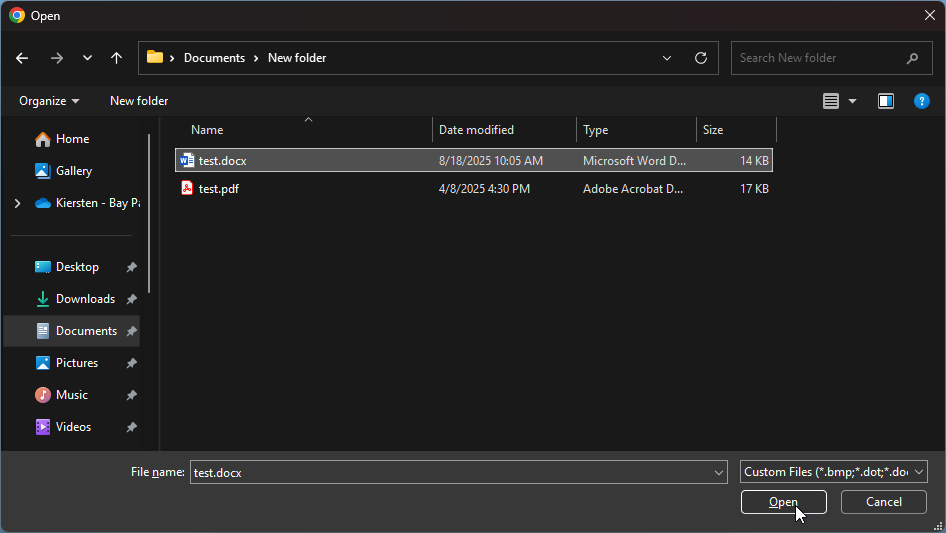
Select the file you want to print and click Open.
-
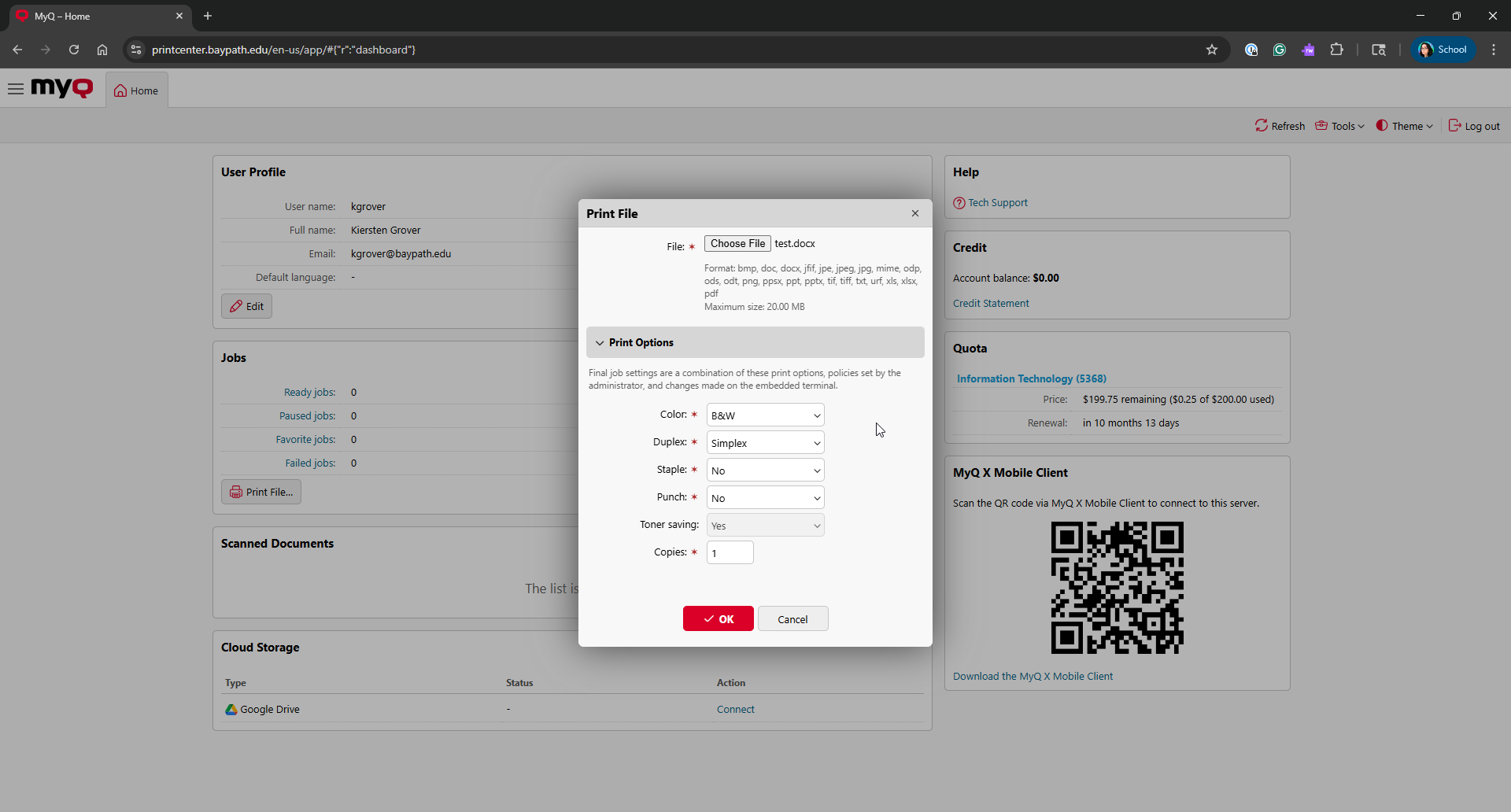
Under Options, choose the options you’d like for your print.
-
Click OK when done.
-
You can now use these instructions to release the print job.